Portfolio
Documenting what I learn - Labs, CTFs, etc.
Migrating an Active Directory Domain Behind a pfSense Firewall
I will be assuming that you have an existing Active Directory Domain and that you would like to put a firewall between the domain and the Internet. However, if you do not have an existing Active Directory Domain, you can check out my previous project to build one from scratch, or you may follow along with just pfSense and a Windows 11 client (specific steps will differ, but general procedures will likely be similar).
Migrating the Domain Controller
To migrate the Domain Controller, we will need to assign the Domain Controller a static IP address within the LAN subnet 10.10.10.0/24. We go into Ethernet Properties and into Internet Protocol Version 4 (TCP/IP) Properties to assign an IP address manually.
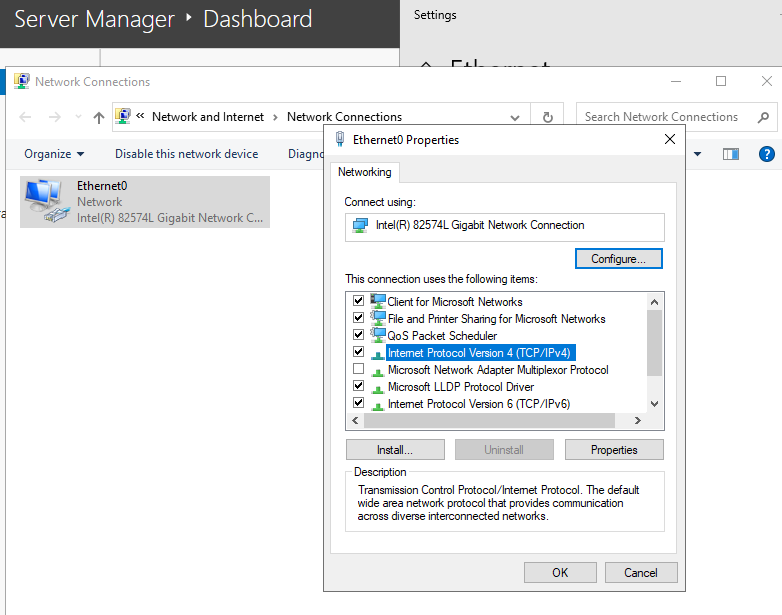
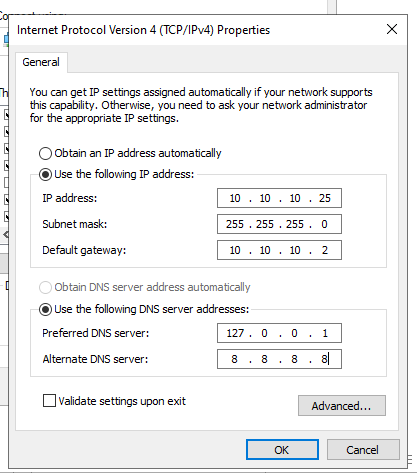
The DC is assigned 10.10.10.25 with the default gateway being the pfSense LAN interface IP address 10.10.10.2. This essentially tells the DC to route traffic through pfSense (10.10.10.2) if the destination host is outside our current network (LAN).
Unfortunately, we run into a problem…
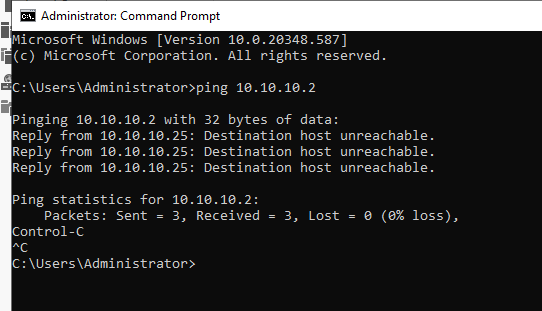
It seems like we cannot reach the gateway since our ping fails, which is weird…. since we are in the same subnet. However, the problem here illustrates the difference between Layer 2 (Data Link Layer) and Layer 3 (Network Layer) in the OSI Model. Although we are in the same subnet, there is a physical limitation.
The DC sees the destination as 10.10.10.2, and knows that it is inside the subnet - so it should talk to it directly (through Layer 2). It uses ARP, the address resolution protocol, to map the destination IP address to a local MAC address. However, this fails.
ARP sends a broadcast on the local network… Who has 10.10.10.2? Tell 10.10.10.25, but because pfSense is not on the same Layer 2 Network, the broadcast does not reach it, and it never hears the ARP request, prompting the gateway to be unreachable.
The fix is actually quite easy! One thing I overlooked was that I never placed the DC VM on the same LAN segment as the VM running pfSense. This means, even though the IP address is inside the same subnet, it cannot physically reach the gateway because it lives on a different virtual switch.
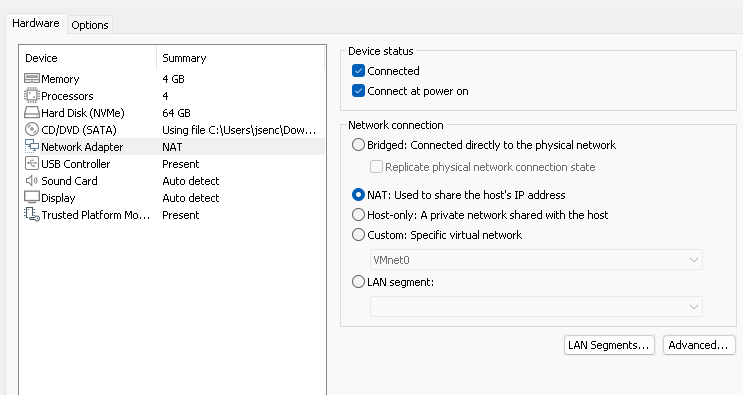
Go into the VM settings for the DC and choose the LAN segment that we made
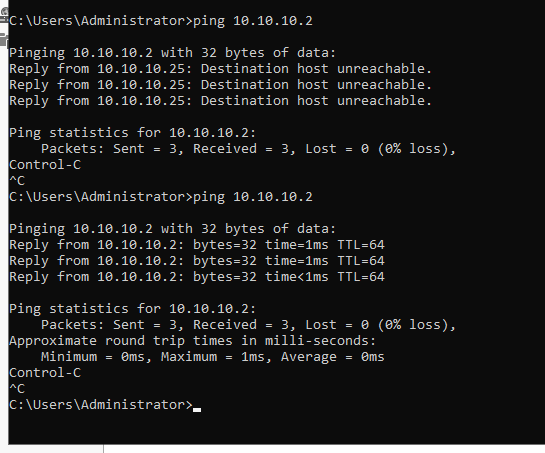
After configuring the network adapter for the DC VM, we can ping the gateway
pfSense Web Configurator
Knowing that the DC can reach the default gateway 10.10.10.2, we can go into the pfSense Web Configurator on the DC VM, the web-based GUI that allows you to manage the firewall without using the console. To get to the Web Configurator, all we need to do is query for the LAN interface IP address in a browser.
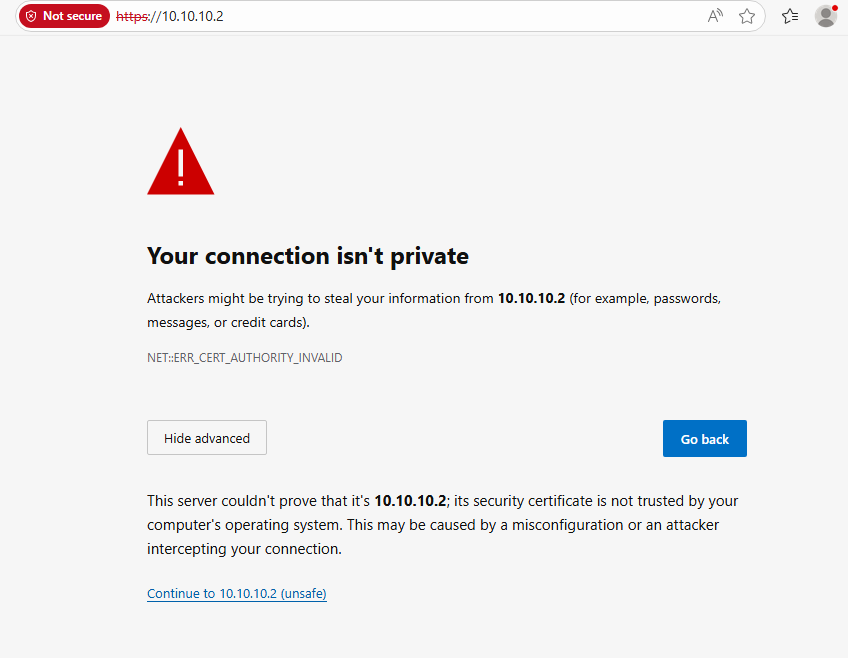
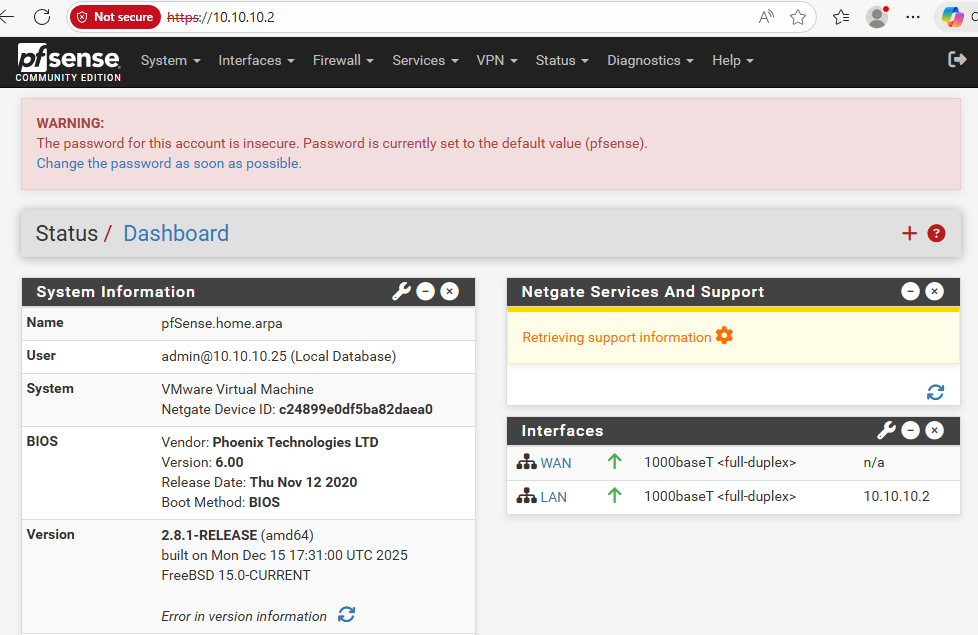
After going through the Web Configurator and leaving settings as default/recommended, we arrive at the homepage
Now, let’s run a few tests…
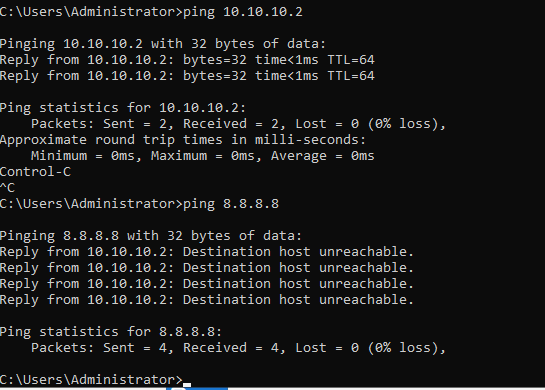
Pinging the gateway from DC works; however, it looks like our DC cannot reach the Internet (pinging 8.8.8.8 fails)
What I tried to fix this was to add a routing gateway within the Web Configurator.
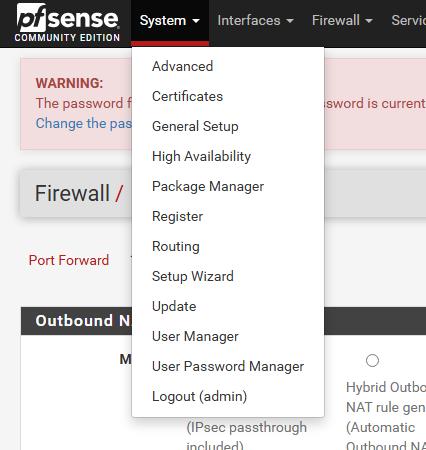
Systems -> Routing
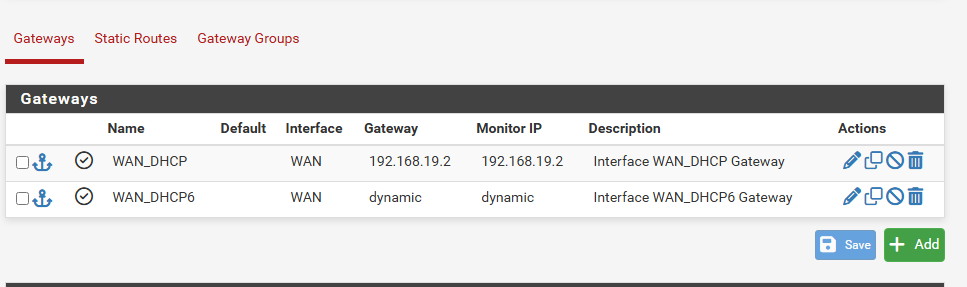
Add new gateway
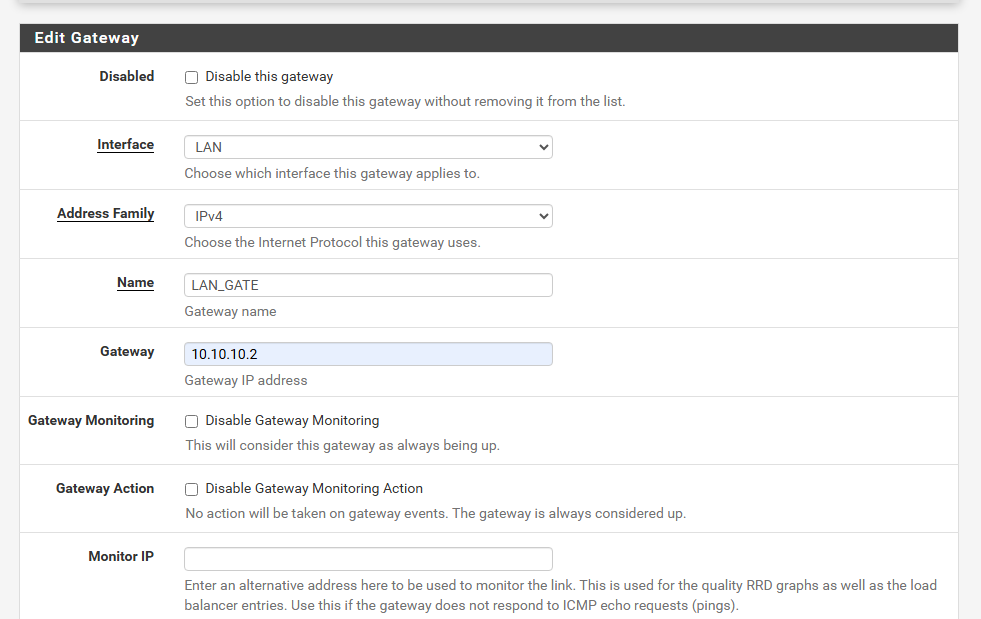
Configuring gateway settings
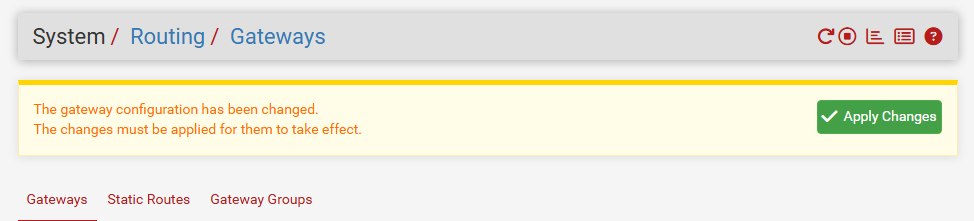
Applying the changes
However, this did not fix the problem. Instead, we get a different error, which hints at an infinite loop within the network. By adding the LAN gateway, we are basically telling all traffic leaving the LAN to route to 10.10.10.2, which is the pfSense LAN interface, basically a self-referential loop. I decided to delete our newly created gateway since that did not help.
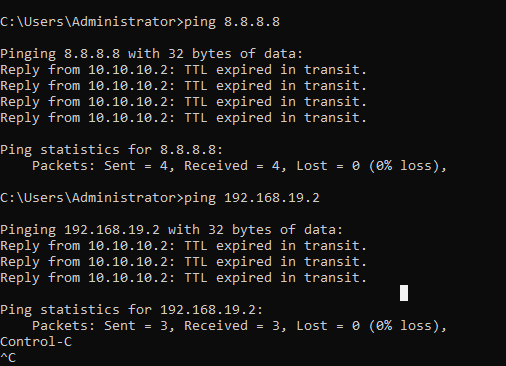
After looking browsing around, I went back to the pfSense console, and that is when I realized:
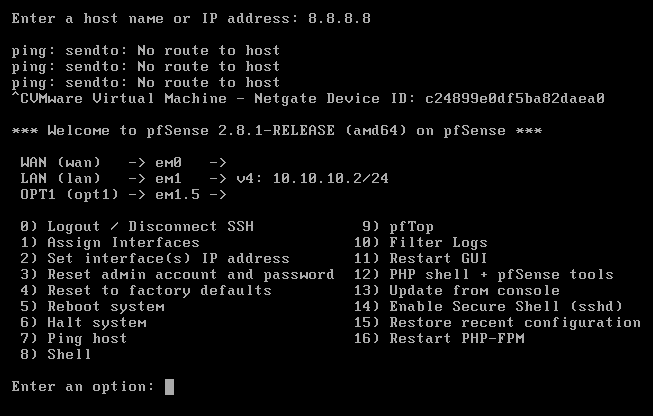
The em0 or WAN interface is not assigned to anything, which explains why we are not connected to the internet since the WAN interface is the path to the Internet.
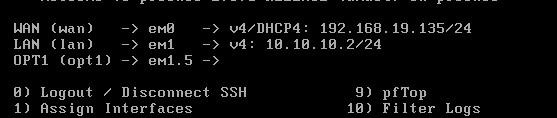
After resetting and configuring the WAN interface, it has an IP address now
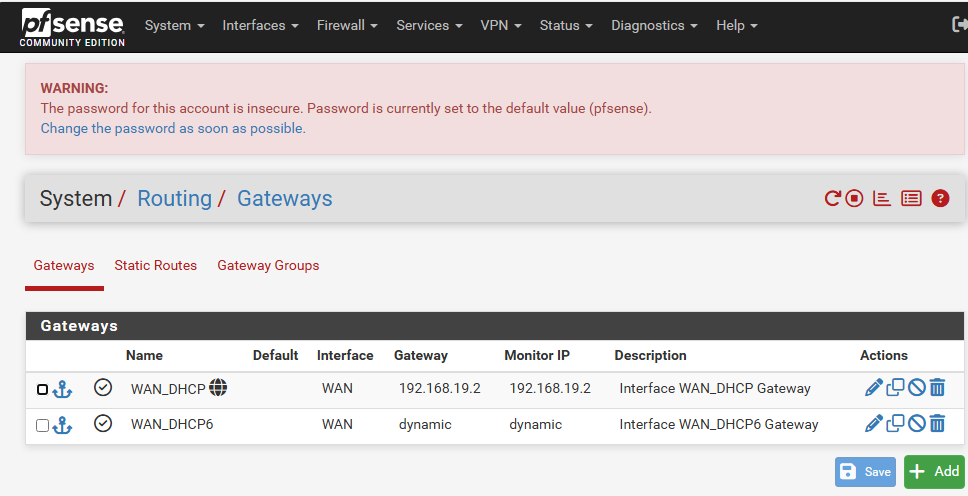
Back in the Web Configurator, we see the Internet symbol appear next to our WAN gateway
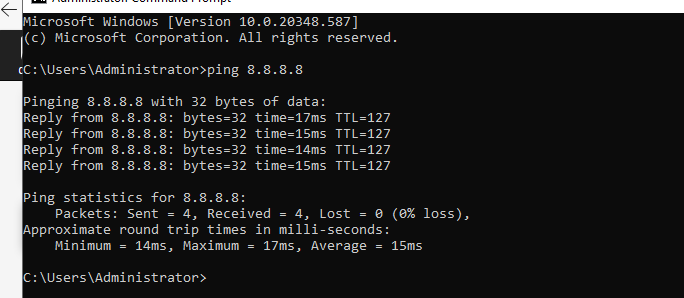
Pinging 8.8.8.8 works now - we are connected to the Internet
Migrating Windows 11 Domain Users
After migrating the DC, we also need to migrate the domain users John Doe and Jane Doe (two separate Windows 11 VMs). The first thing we need to do is configure their network adapters to point to LAN_NET (the LAN segment we created). After that, to ease the transition, I temporarily disabled (unlinked) the GPOs that restricted their access to the Windows Settings.
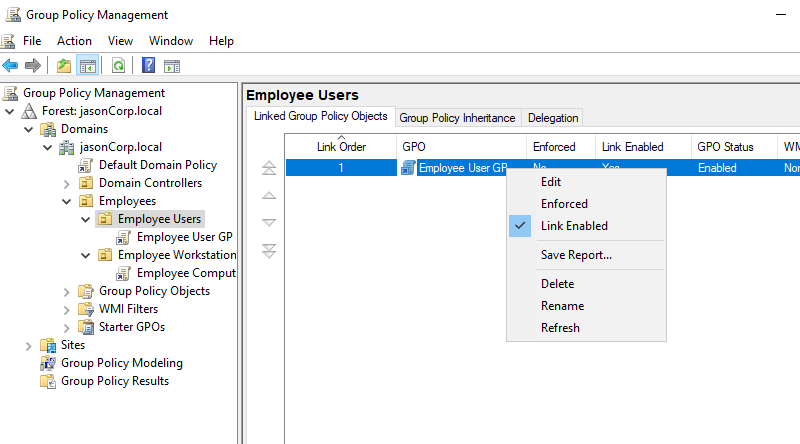
Unlinking GPOs that hid and restricted domain users from accessing settings
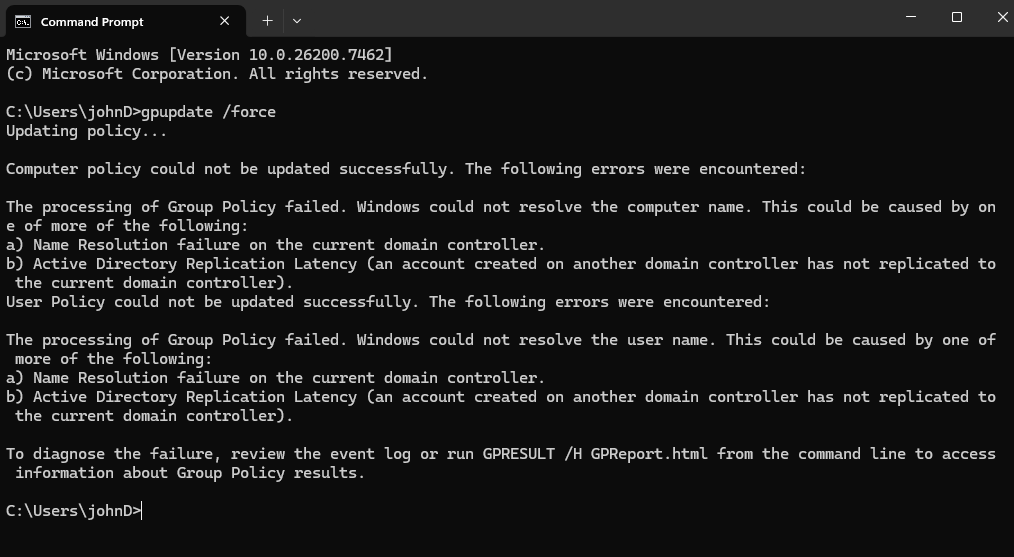
Running gpupdate /force to force GPO update on client VMs
However, we run into this problem of policies failing to update… We moved our DC, which means Active Directory breaks because client VMs are still using the previous static IP address of the DC to resolve DNS lookups. To fix this, we need to assign the preferred DNS server to 10.10.10.25 (where the DC currently is).
We need to go into Settings -> Network & Internet -> Ethernet.
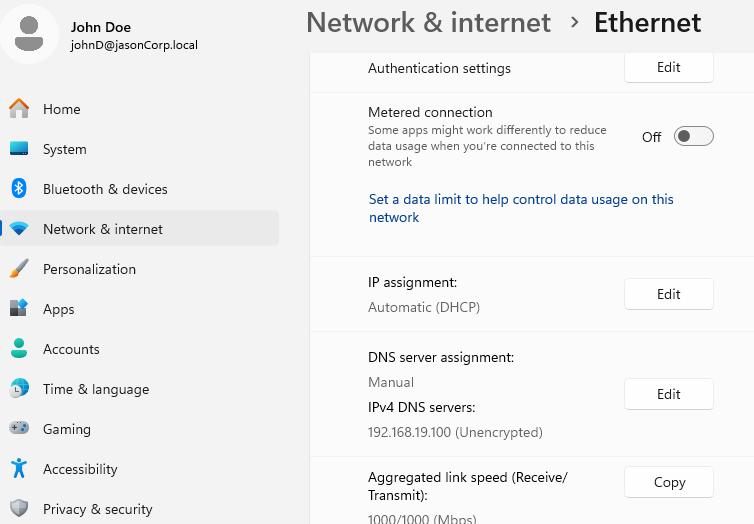
Notice how the DNS server points to our old AD+DNS server’s IP address
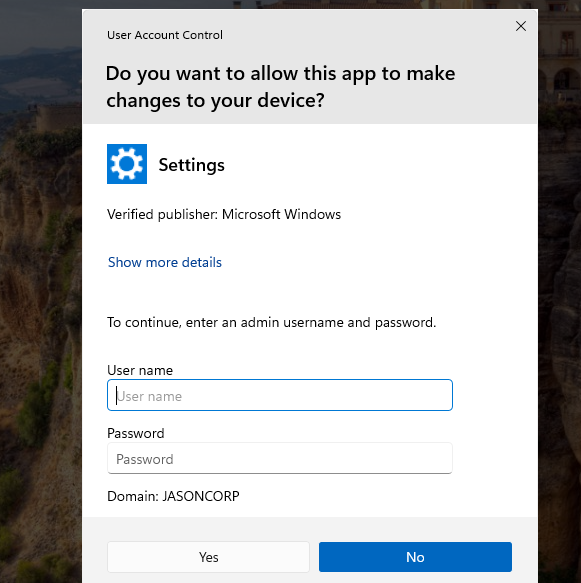
Changing requires administrator privileges, log in with the user administrator and the password you used to sign into the Windows Server 2022 administrator account
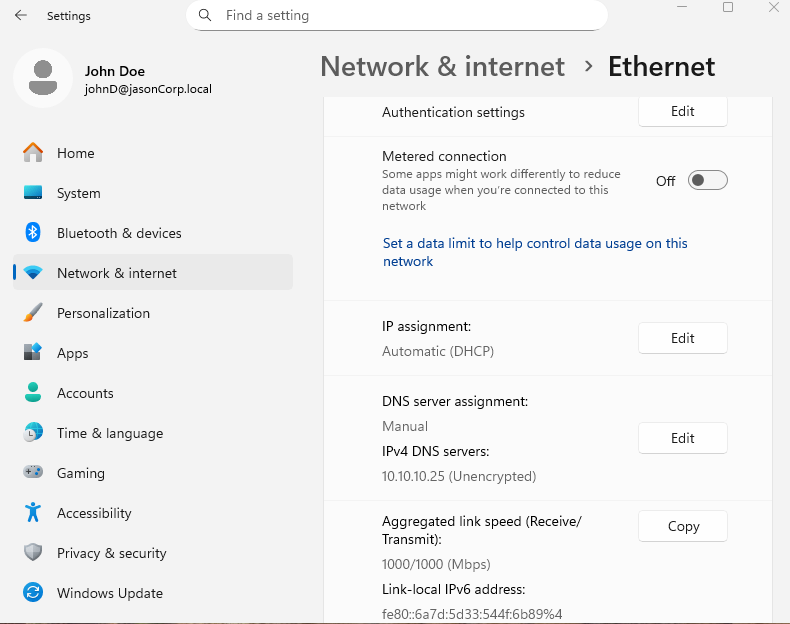
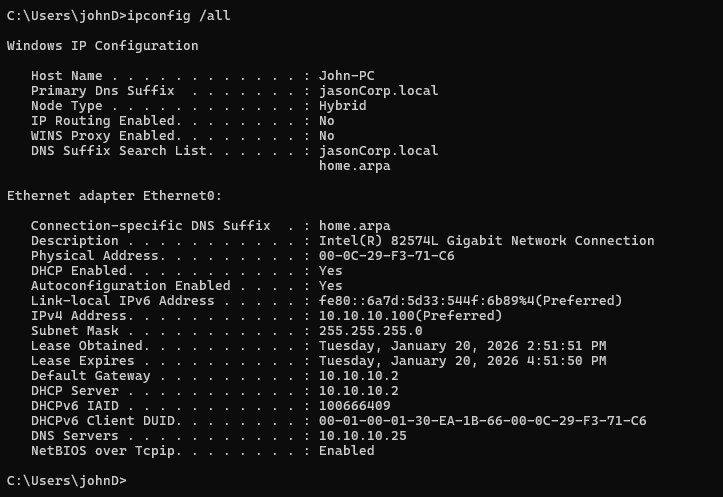
Notice how DNS points to our new DC IP address, 10.10.10.25, the IPv4 address of the current host (assigned by pfSense’s DHCP upon joining the LAN, ranging from 10.10.10.100 to 10.10.10.254), and the default gateway being the pfSense LAN interface, 10.10.10.2.
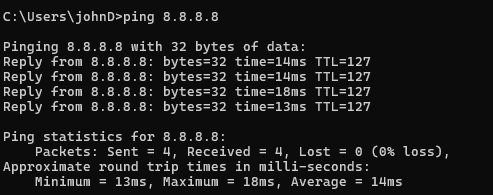
Testing ping on the client Windows VM -> it is connected to the internet while being behind the firewall
Now, let’s move Jane behind the firewall.
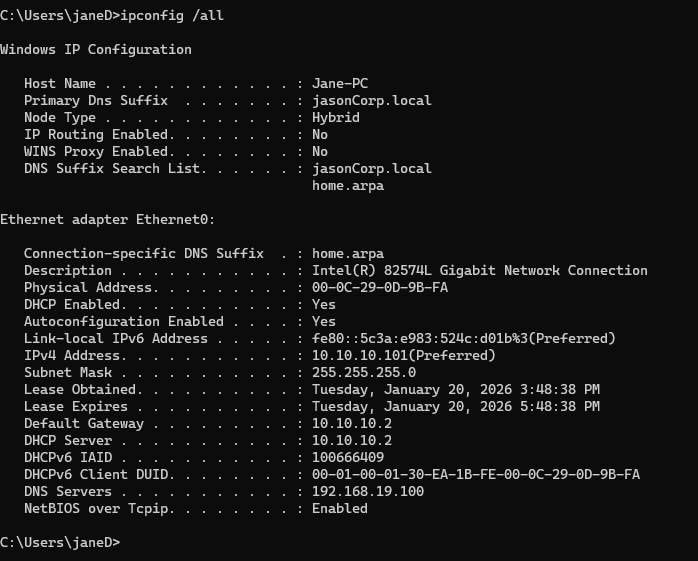
Before migration, notice that the DNS still points to the old DC IP address. Also, pfSense’s DHCP gave Jane 10.10.10.101
Now, we just do the exact same steps that we did for John… however, we encounter a problem.
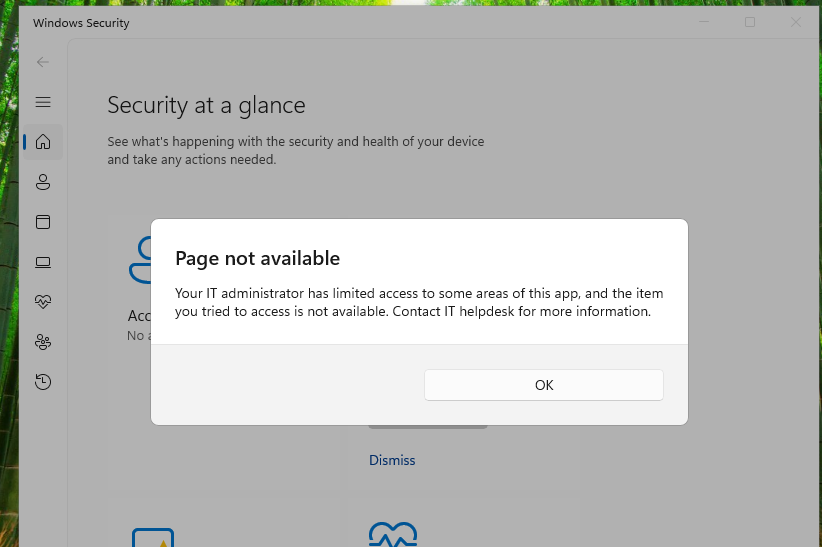
Somehow, Jane is still under the GPO restrictions even though I have unlinked them. Looks like we cannot access the network settings this way.
One way we can circumvent this is to log into Jane’s computer using the local administrator account.
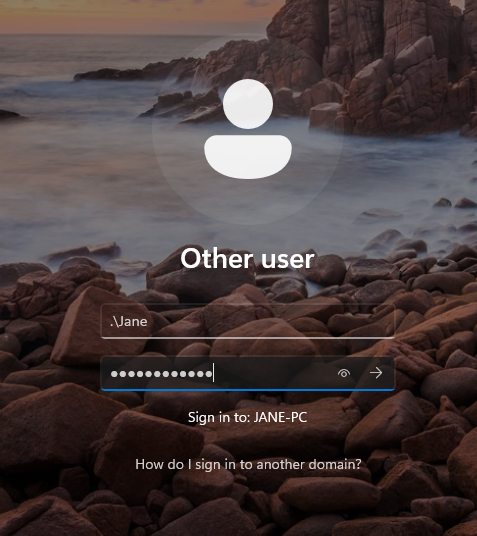
Using .\[local account username] and the original password that was used to set up the workstation
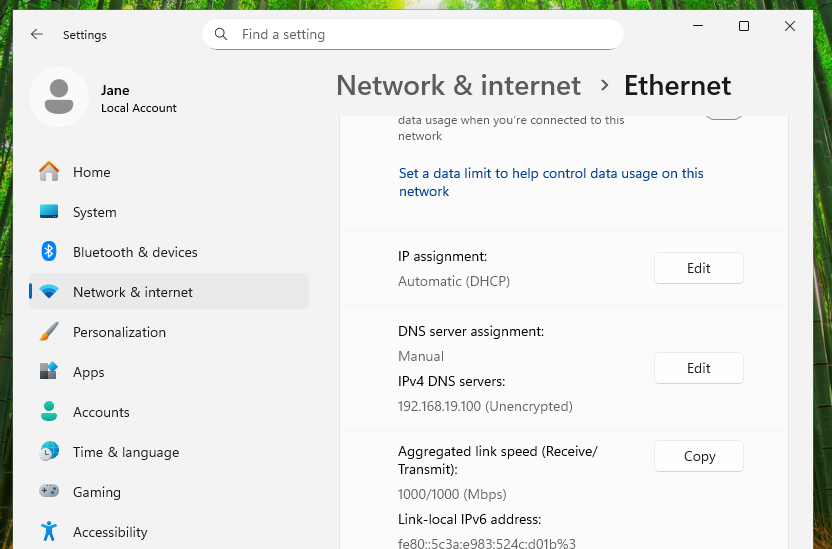
We can then change the DNS server preference on the local administrator account
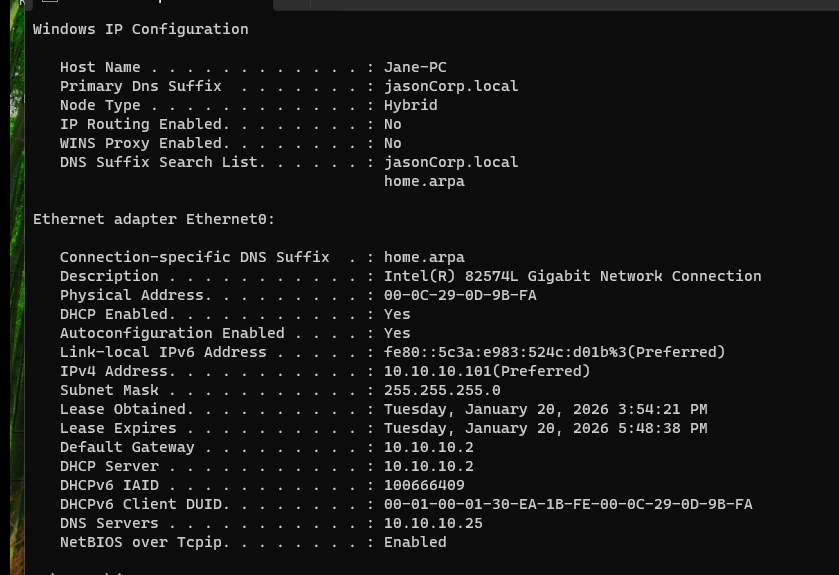
Logging back into the domain account, we now run ipconfig /all and see that the changes were applied
After Migration
After migrating both the DC and Domain Users behind the firewall, I relinked the GPOs within Group Policy Management inside the AD+DNS Server VM.
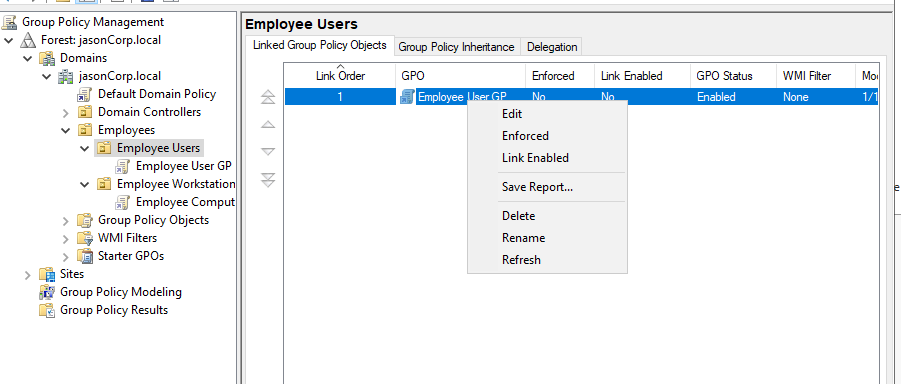
Was temporarily disabled/unlinked, now relinked to enforce GPOs once again
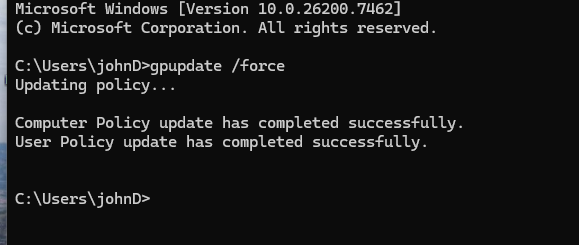
Running gpupdate /force on John -> seems like John can see the DC now, implying our domain is back up
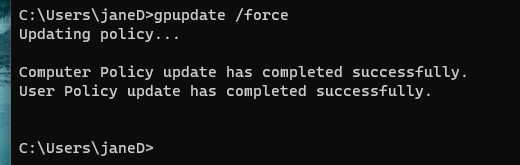
Running gpupdate /force on Jane, same result
We have successfully migrated our AD domain behind the pfSense firewall.
Summary / Current Network Topography
| Component | Interface | IP Address | Subnet | Purpose |
|---|---|---|---|---|
| pfSense | LAN | 10.10.10.2 | 10.10.10.0/24 | Default gateway for LAN |
| pfSense | WAN | DHCP | Upstream ISP | Internet access |
| Domain Controller | Ethernet | 10.10.10.25 | 10.10.10.0/24 | AD DS + DNS |
| Windows 11 (John) | Ethernet | 10.10.10.100 | 10.10.10.0/24 | Domain Client |
| Windows 11 (Jane) | Ethernet | 10.10.10.101 | 10.10.10.0/24 | Domain Client |