Portfolio
Documenting what I learn - Labs, CTFs, etc.
Configuring Server to be a Domain Controller
Setting a Static IP
To convert our Windows Server 2022 to a Domain Controller, we must first make the server’s IP address static. This ensures the server maintains a consistent network identity and remains reliably reachable by clients/services on the network.
Before we actually change our IP address, it is best to figure out the current network topography. This can be done by running ipconfig in Command Prompt. This gives us the current subnet, default gateway, etc, ensuring boundaries are respected and we do not run into routing issues.
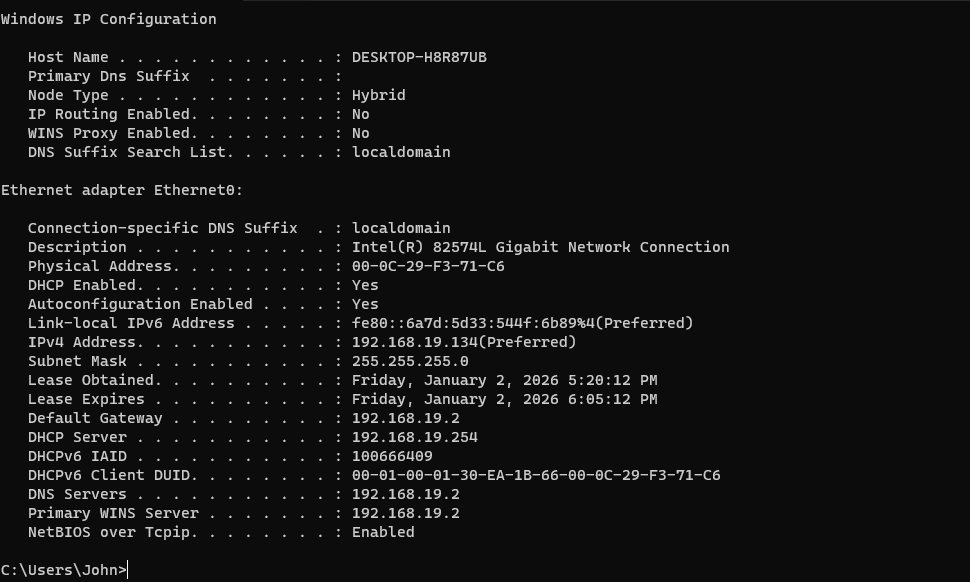
Subnet mask is 255.255.255.0, that means 8 bits for host -> with .0 and .255 reserved, so 192.168.19.1-254 can be assigned
Now, to change the IP address of the server, we must go into settings -> network & internet -> change adapter settings -> right click on Ethernet0 -> properties -> select Internet Protocol Version 4 (TCP/IPv4)
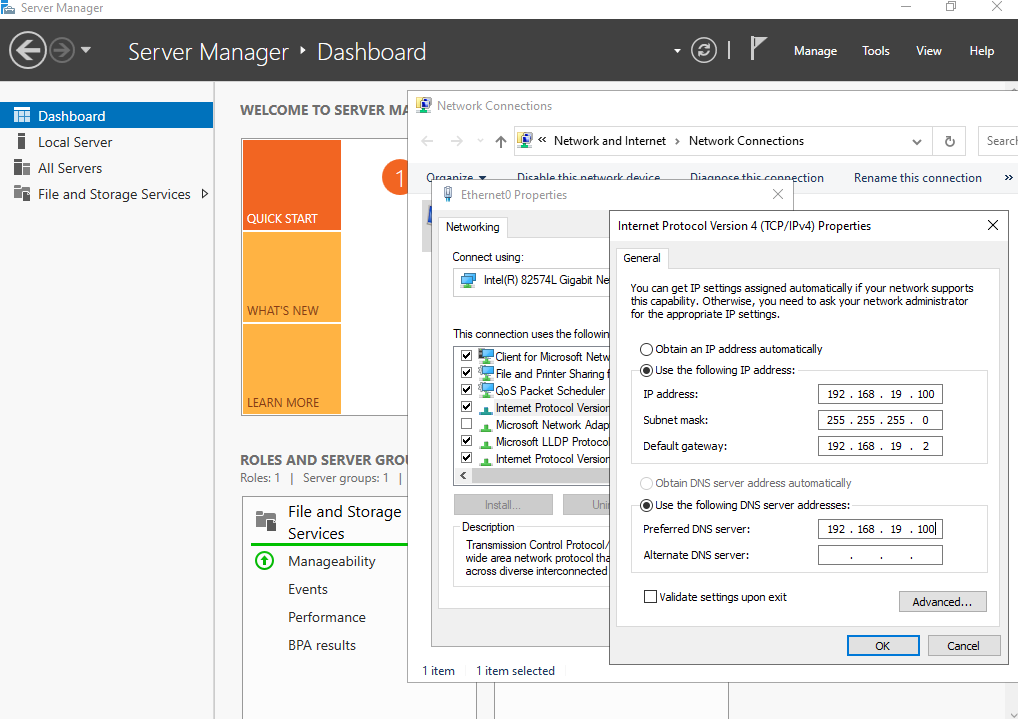
Fill out the configurations based on YOUR ipconfig results. Also, fill out Preferred DNS Server and Alternative DNS Server
Modify the alternative DNS Server to 8.8.8.8 (Google’s), else we will not have an internet connection since DNS queries are made through our newly set up server (which doesn’t know anything about the internet), and we will have trouble resolving domains to IP addresses. However, if we use Google’s -> DNS queries are resolved, and we are “connected” to the Internet.
Now that we have a static IP address for our server, we also treat our server as a DNS server. This is because Active Directory heavily relies on DNS. AD uses DNS to locate domain services, and it also allows clients to find the server (Domain Controller).
Configuring Server with Server Manager
After configuring a static IP, we need to install Active Directory on our server, which can be done directly through the Server Manager.
- Server Manager
- Add Roles and Features (in Dashboard)
- Role/feature based installation
- Select AD DS (Active Directory Domain Services Role) and DNS
- Go through with the installation process with recommended features
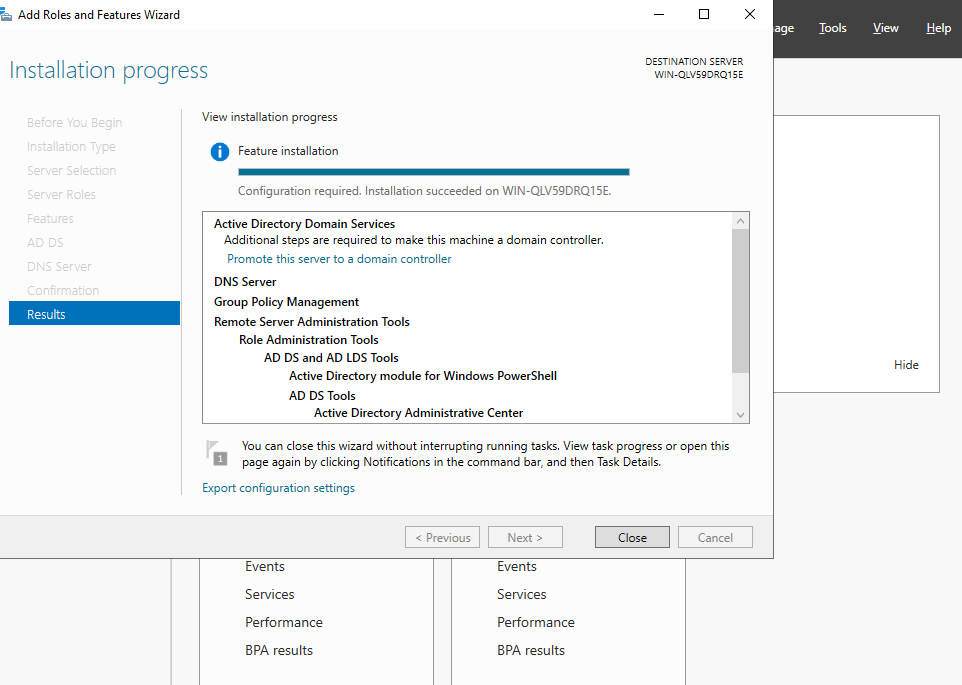
Promoting our Server to be a Domain Controller
Now, the final step is to promote the server to be a Domain Controller (DC) - which is basically a server in a network that hosts Active Directory and is responsible for authenticating and authorizing all users/computers within a domain.
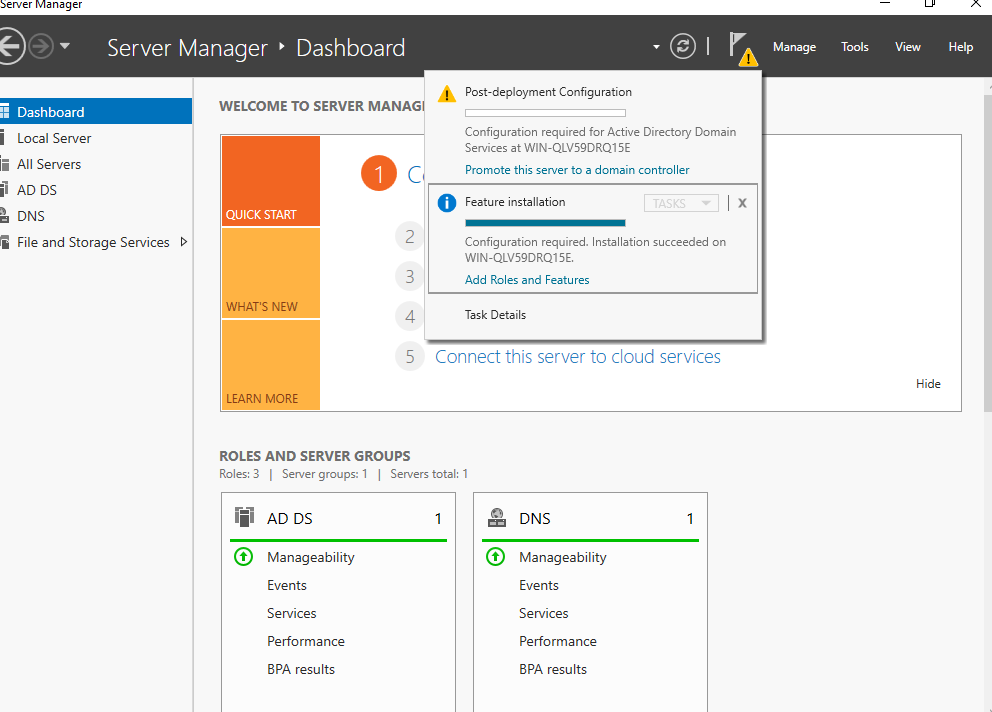
To promote our server to a DC, click on the little flag icon in Server Manager
We will be prompted to 1. Add DC to an existing domain, 2. Add a new domain to an existing forest, or 3. Add a new forest.
A forest is basically a top-level container that can contain multiple domains, since we do not have a forest -> we need to select option 3 to add a new forest. This will prompt you to enter a name for your forest. I named mine jasonCorp.local.
You will also be prompted to set a directory services restore mode (DSRM) password, pretty important as DSRM is used to repair/restore the AD if something goes wrong.
We can skip DNS delegation since our server/DC is authoritative -> this means all domain queries will be answered by the DNS server, which is the DC; we do not need to delegate DNS lookups to another server.
Restart the server, and you have a functioning domain controller.
Checking The Server
After you have restarted, to check if Active Directory was successfully installed, in Server Manager, you should see an option for AD DS and DNS. For example, in the picture below:
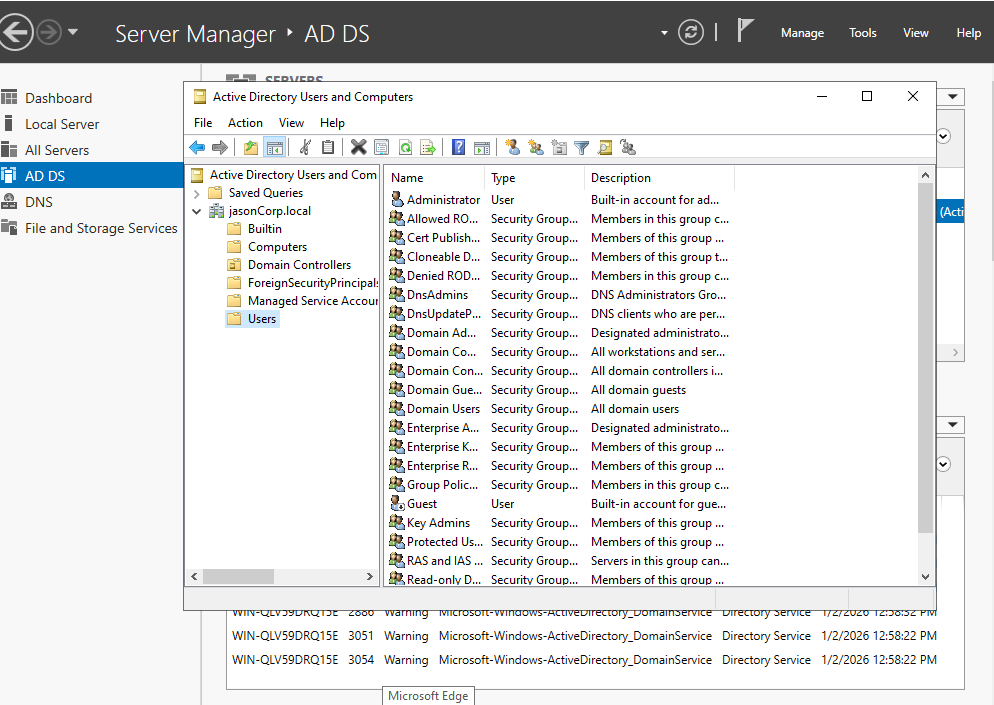
On the left side of Server Manager, you should see AD DS and DNS
Additionally, you can check if DNS is up and running by going into services.msc.
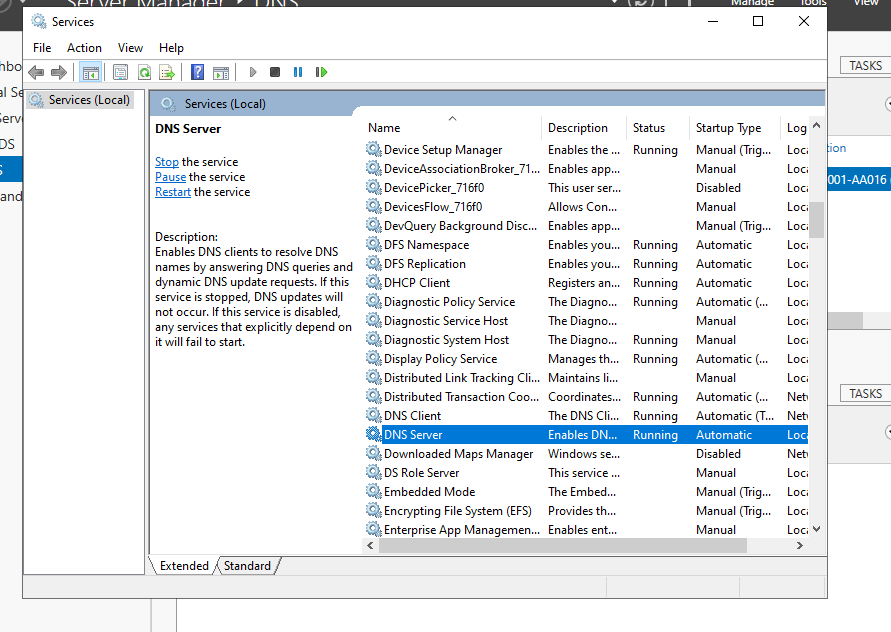
From the image, our machine is running as a DNS server
We can also check DNS by using the nslookup command in the command prompt. Simply open the command prompt, type in nslookup, and then query for your forest name.
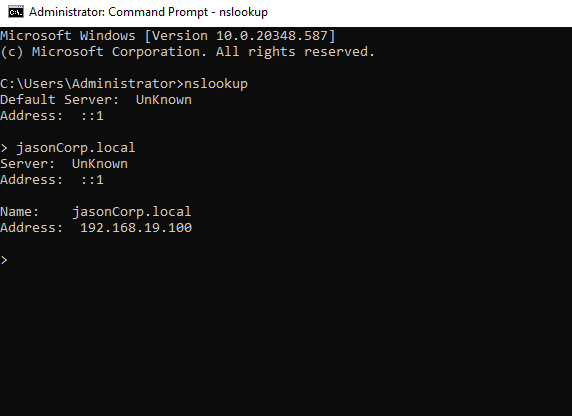
In my case, after typing in nslookup, I queried my forest name, which was jasonCorp.local
It might look weird, especially if nslookup returned Default Server: Unknown and Address: ::1, however, that is fine - loopback addresses (::1 basically means 127.0.0.1) typically do not have a reverse DNS (PTR) record. However, forward DNS queries should succeed - typing in your forest (domain) name should give you the server’s static IP address. Additionally, you could also do nslookup Google.com to test if DNS is resolving or not.
Please check that your DNS works - AD heavily relies on DNS, your clients may not be able to find the domain controller within the network if DNS does not work, which means they cannot join the domain.