Portfolio
Documenting what I learn - Labs, CTFs, etc.
Creating Organizational Units (OUs) and Group Policy Objects (GPOs)
How to create an Organizational Unit
Within the AD+DNS Windows Server 2022 VM, you can open up Active Directory Users and Computers (ADUC) by searching for it in the start menu, or by accessing it through Server Manager.
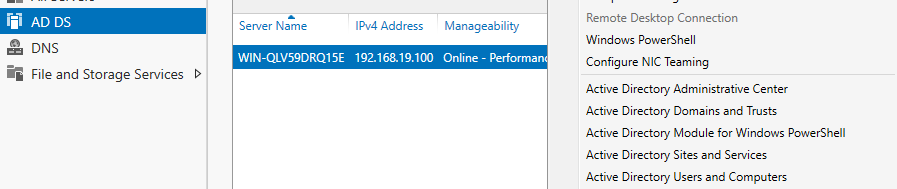
Accessing through Server Manager
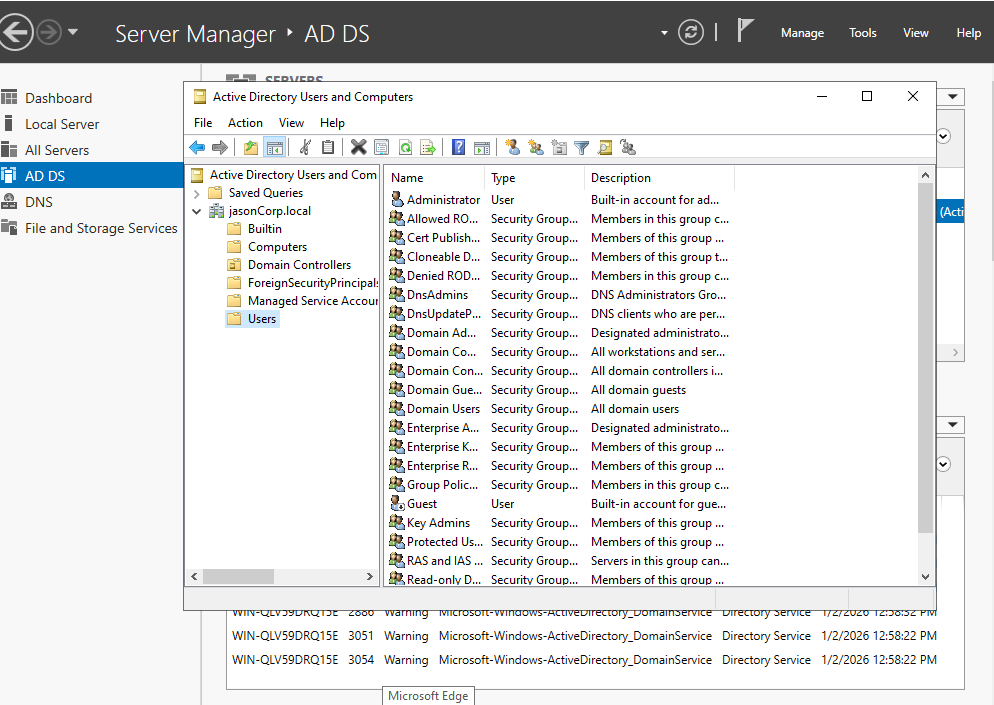
Within ADUC, you should see something along the lines of:
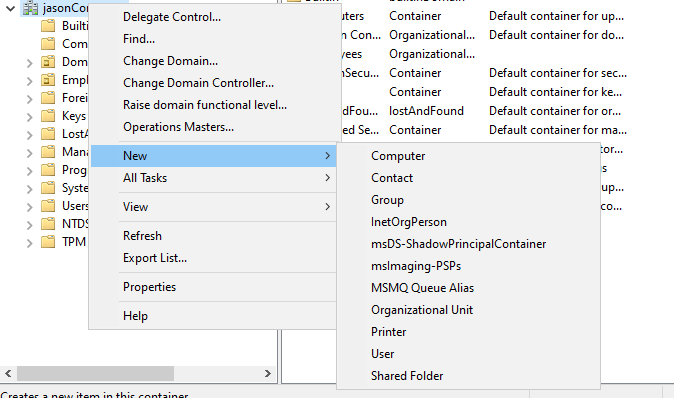
Now, to create an OU, right-click on the domain -> New -> Organizational Unit
You will then be prompted to create a name for your OU.
After creating an OU, you can create additional OUs within that newly created OU. I personally structured mine to be like this:
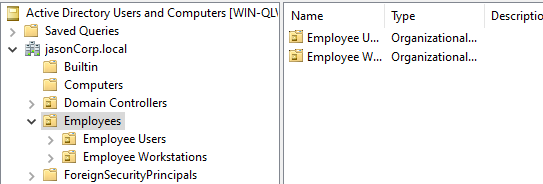
One Employees OU, which contains an Employee Users OU, and an Employee Workstations OU
The purpose of creating an OU for users and another for workstations will be seen later. It is very important, organizationally, and can impact the effectiveness of GPOs.
Now you can move the users you have created in the default Users OU into their respective OUs. In this case, I have placed John Doe and Jane Doe into Employee Users and their respective workstations from the default Computers OU into the Employee Workstation OU.
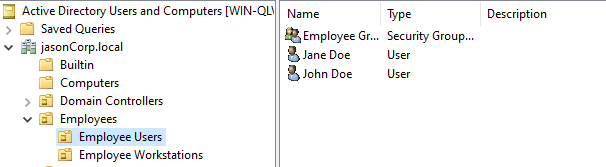
You can ignore the Employee Security Group - that is for a feature that I will cover later
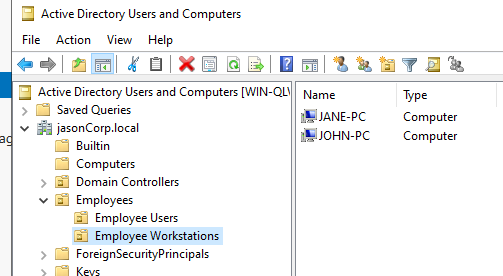
Now, you should have a good organizational structure to implement Group Policy Objects (GPOs)
How to create Group Policy Objects
Within the same VM - search for Group Policy Management.
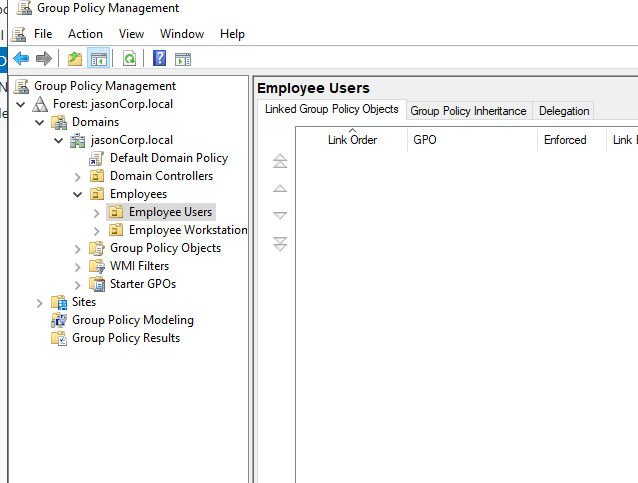
Within Group Policy Management (GPM), you should see a relatively similar structure as ADUC
Right-click the OU that you want to create a GPO for. A GPO is basically a set of rules and restrictions defined within an OU that applies to users/computers found within that OU. It is used to centrally manage/configure user/computer settings, which could include rules for security, applications, desktop environments, etc.
To create a GPO, all you would have to do is right-click on the OU that you would want the GPO to apply to, and then select Create a GPO in this domain, and Link it here..., which will prompt you for a name for that GPO.
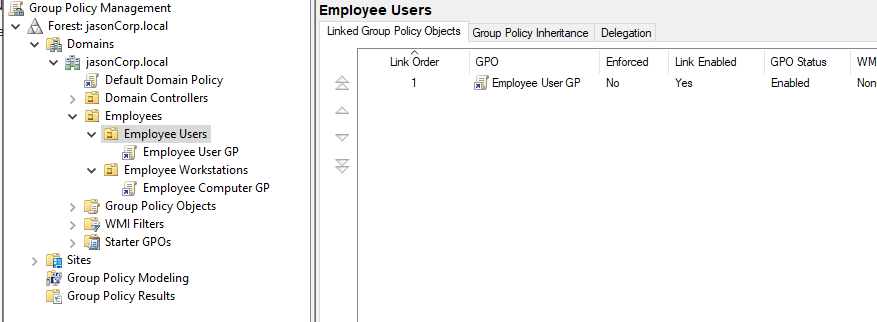
Your layout should be something like this
Group Policy Objects
Now onto the actual creation of Group Policy Objects - click on the Group Policy Object you want to edit, and you should see the following:
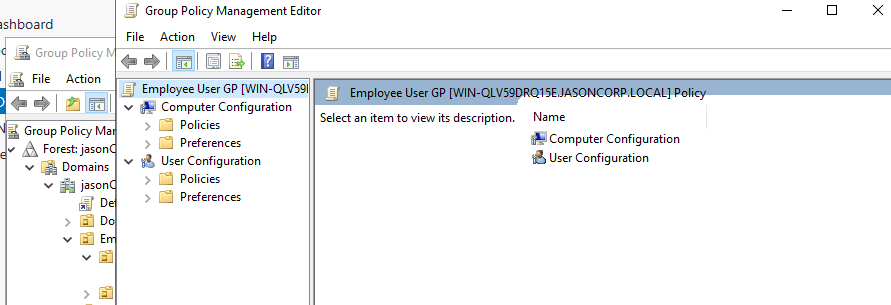
There are two types of changes you can implement, one deals with users and another computers. The entire reason why we separated the workstations and users into two different OUs is to implement the GPOs for them individually.
User Configurations only apply to User Objects; meanwhile, Computer Configurations only apply to Workstations/Computers. However, I must point out that there are exceptions to this rule. Domain-Level Policies, which I will cover later.
User Configurations
First, we will edit the User Configurations - this means we will edit the GPO inside Employee Users.
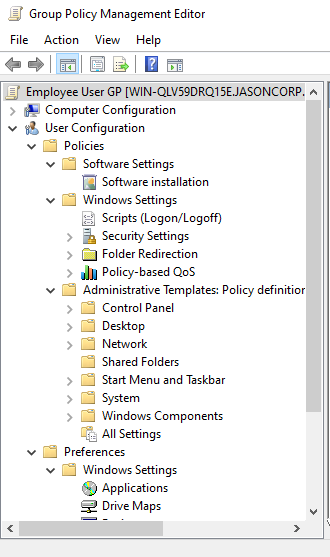
Open the folders, and you will see a ton of options to enable, disable, etc.
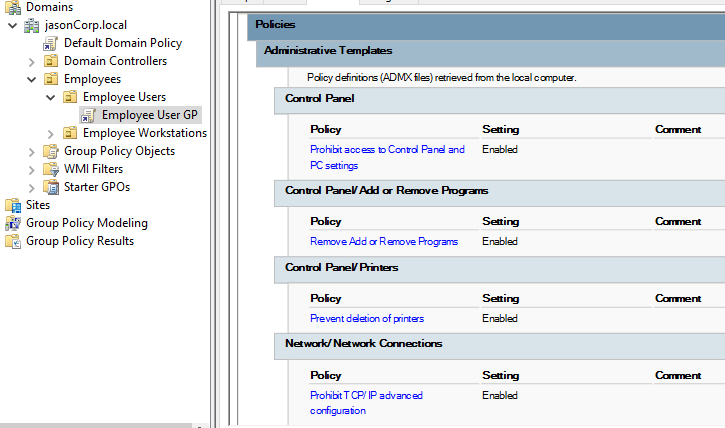
Here are some options that I have selected
Tons of options/rules that you can enforce with the GPO, feel free to mess around. Just be sure to Apply what rules/restrictions you are implementing.
You could also test the GPOs by going to the client VM that joined your domain (and that they are in your OU), restarting their device, and logging in again. Other than that, you may have to wait for the background refresh to apply to the GPO, which takes around 90 minutes.
You can also run the following command inside the command prompt on the user’s computer to force the GPO update:
gpupdate /force
This command refreshes and reapplies the GPOs to the computer
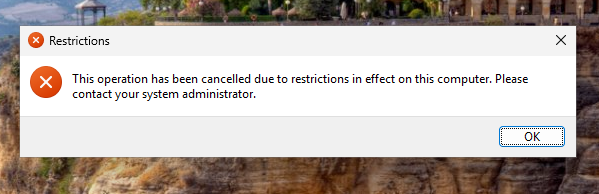
Now, you can definitely test if your GPO is enforcing rules. For example, for me, I have disabled Control Panel for my users, and thus, whenever they try and open Control Panel, the following pops up:
Another way of testing if your GPO is applied is by running this command in the command prompt:
gpresult /r
This command displays relevant information about group policies, user settings, etc.
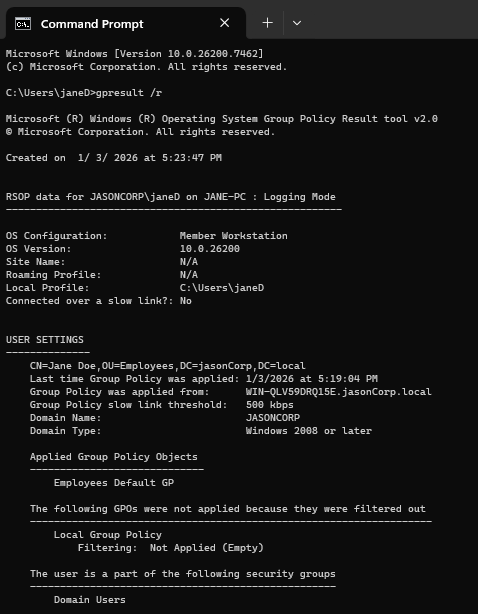
Something like this should appear, and you should see your GPO under Applied Group Policy Objects
Computer Configurations
Now onto Computer Configurations, like User Configurations, but instead, they are applied to workstations/computers under that specific OU. We will be editing the GPO called Employee Computer GP under the Employee Workstations OU.
Just like before, apply and experiment with what you think would be relevant in a real corporate environment. I picked the following:
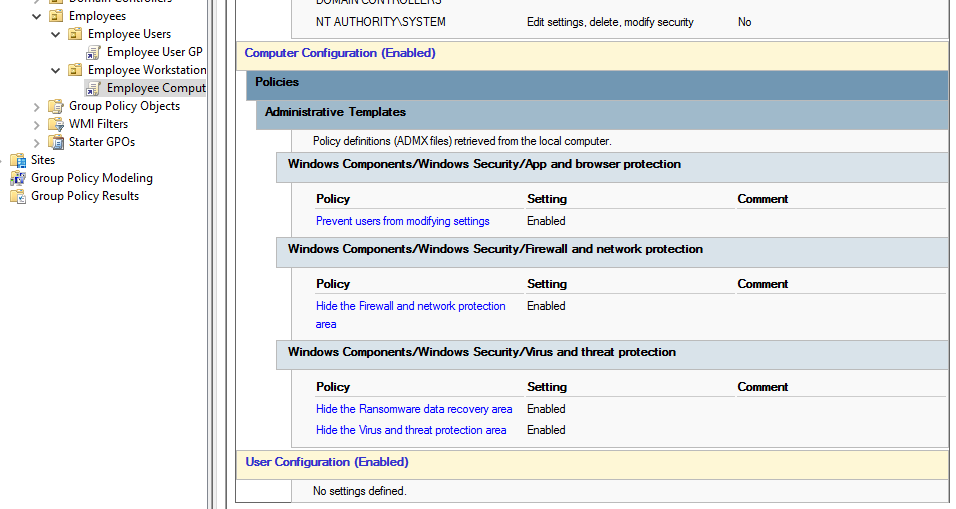
Restart and test if you have implemented the computer configurations correctly. For example, since I decided to hide my virus settings, when going into the client computer, they shouldn’t be able to access or see them.
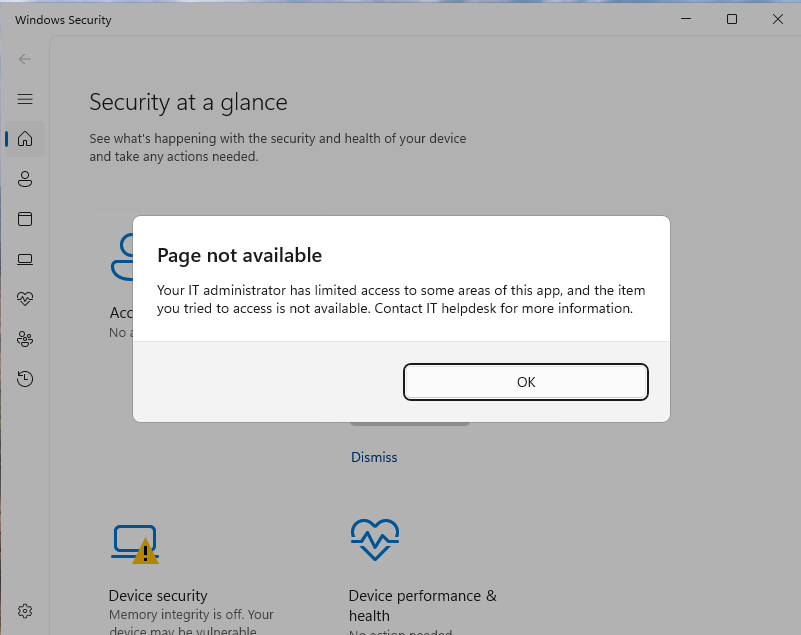
This isn’t really that impactful since if the users want to change any virus settings, they would need administrative privileges anyway, but it shows that the workstation GPO has been applied and enforced
Domain-Level Policies
Like GPOs - but instead of applying within an OU, it will apply to the entire domain. When experimenting, you may have stumbled across Account Policies under Computer Configurations -> Windows Settings -> Security Settings.
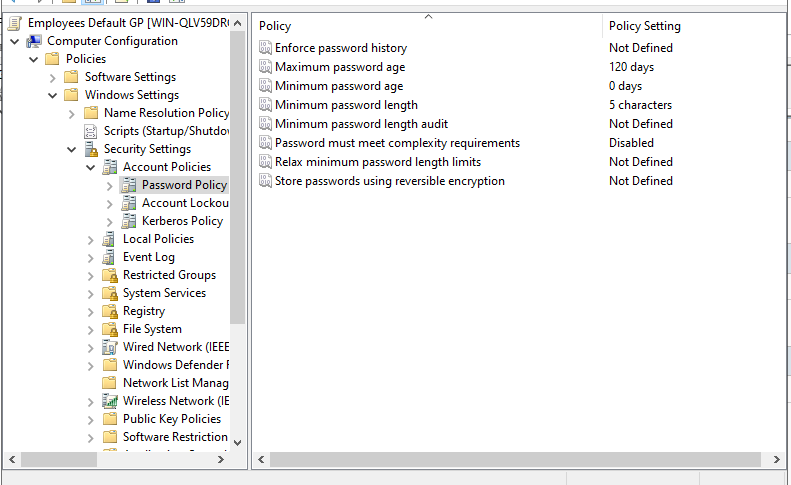
Looks something like this
If you changed any settings involving Account Policies, it will apply to the entire domain. However, if you would like to enforce password settings for a specific user, group, or OU, then you would use Fine-Grained Password Policies (FGPP).
It is best practice to change these domain-level settings inside their own domain-wide policy objects.
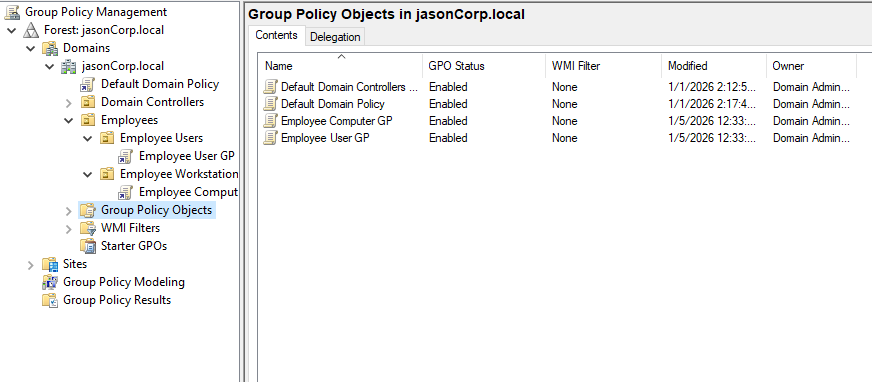
Inside Group Policy Objects, you can already find an existing Default Domain Policy
To conclude, in this subsection, we learned about how to create OUs within ADUC, how we can structure OUs, move users and workstations from different OUs to new ones, how to make GPOs with Group Policy Management, how they are applied, and how they are classified.