Portfolio
Documenting what I learn - Labs, CTFs, etc.
How to Map A Drive
Security Group Creation
In simpler terms, mapping a drive in AD is basically creating a network folder (e.g., \\Server\Share) and mapping that folder to a specific drive letter (e.g., Z:), which appears in the user’s computer. This allows resources on the network to be centrally managed and accessed.
To create a mapped drive for a specific group like Employees, we need to create that Security Group within Active Directory Users and Computers (ADUC). This is because we cannot share folders directly to OUs; we must share them to a Security Group.
Navigate into ADUC -> Employees -> Employee Users -> Right-click -> New -> Group
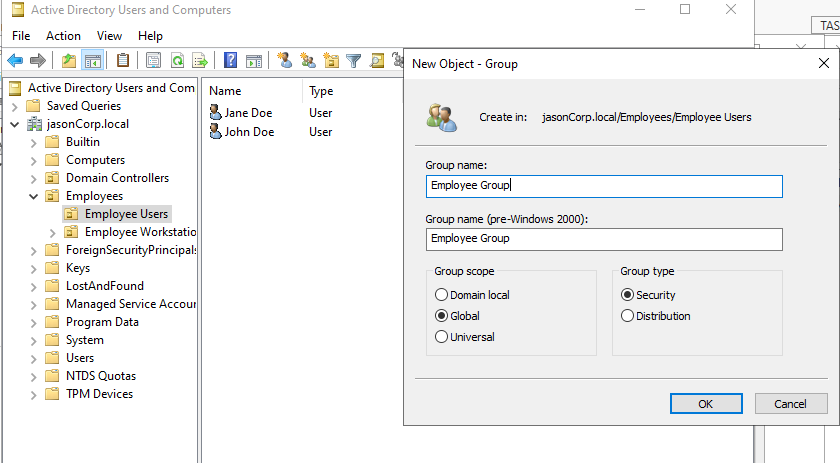
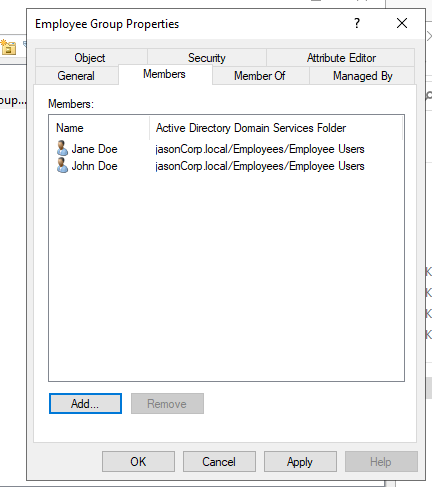
Now, within the newly created security group, we must add the users that we want to have access to the shared drive. In this case, it is John Doe and Jane Doe.
Select the newly created Security Group and then go into properties -> members -> add.
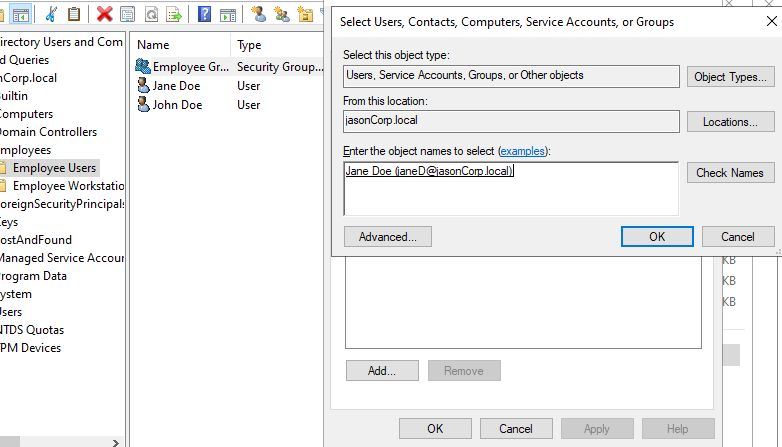
*Type in the users you would want to add; in this case, it would be John Doe and Jane Doe. Once you type a username, hit Check Names, and it will automatically prefill and select the corresponding user. Then you should do it for the other person.
After that, your Security Group should look like the following:
Linking Security Group to A Shared Resource
Now, go into the AD+DNS Server VM, go into the File Explorer, and create a new folder within your root drive. This folder will then be used to share resources within the newly created Security Group.
Right-click the folder -> Properties -> Sharing -> Advanced Sharing -> Permissions -> Add -> and then type in your Security Group Name, check the name, and then select the permissions you would like that group to have before applying.
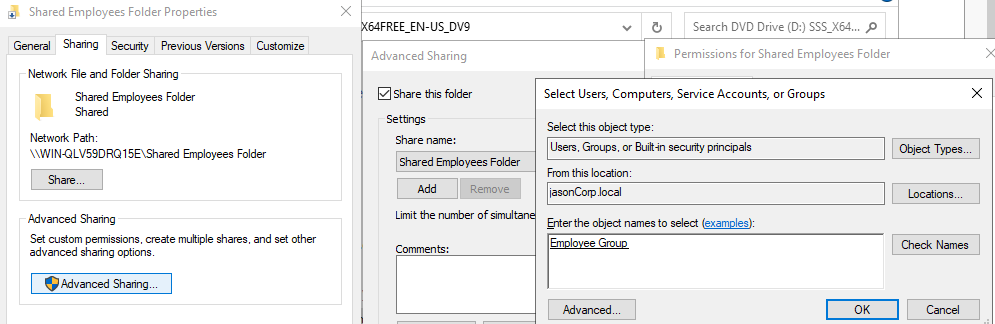
Now, after you have applied everything, open up properties again, and then go into the Security tab, we then have to click Edit and then add your Security Group again with their desired permission levels.
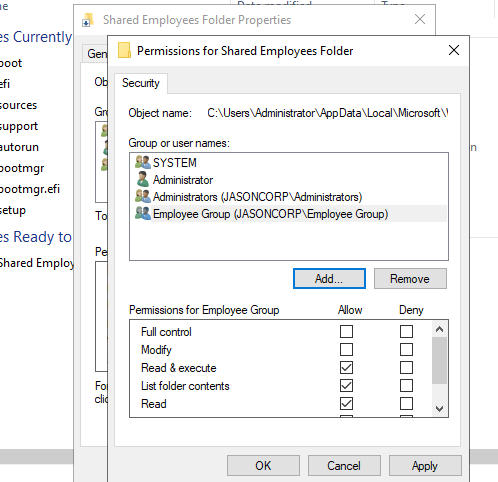
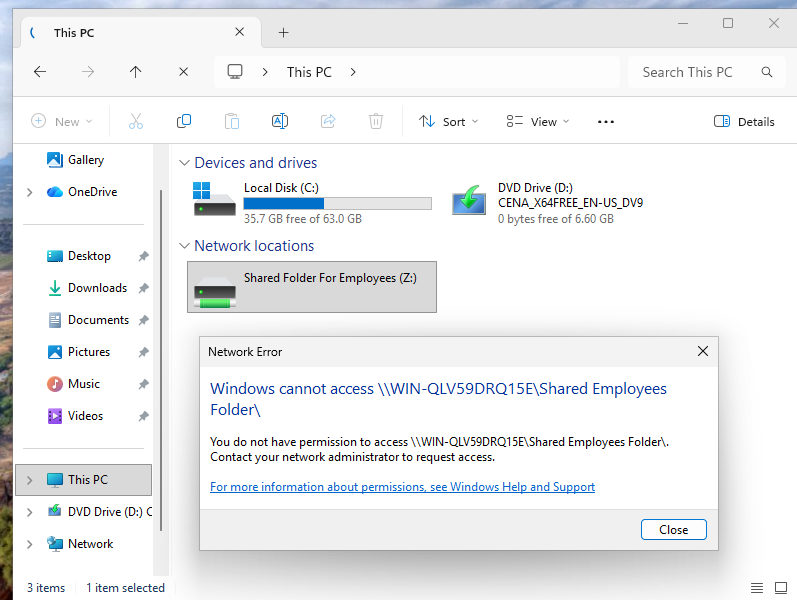
If you skip this step, although the drive will be mapped, users will not be able to access the drive and will encounter the following problem. This is due to NTFS (New Technology File System), so even if a drive is shared, if NTFS permissions are not set within the Security tab, we will be denied authorization.
Now, go into Group Policy Management. Under Employees User GP (or the GPO that you made for your Employee Users), edit it, and then you should see Drive Maps under User Configuration -> Preferences -> Windows Settings.
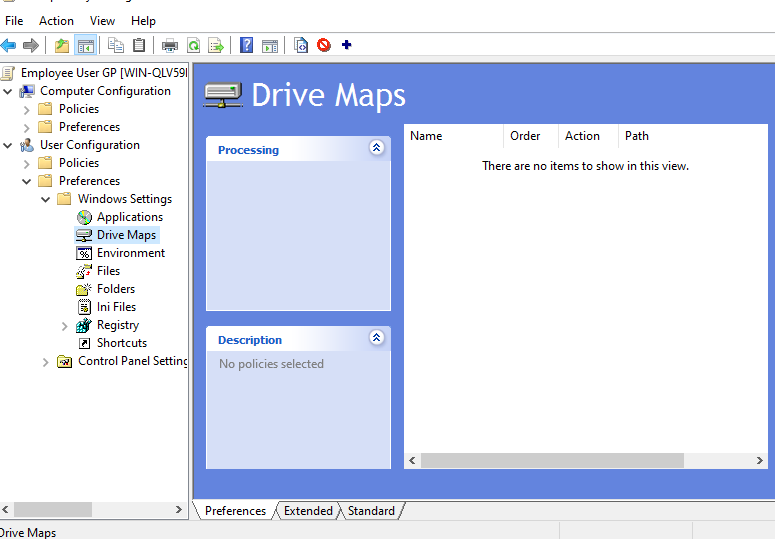
On the left side, right-click -> New -> Mapped Drive.
Action: Create
Location: Provide the network path, in this case, it would be \\hostname of server\name of folder
Reconnect: Check it so that the drive reconnects whenever the client logs in
Label as: Simply the name that the drive would appear under
Drive Letter: Select any. I chose Z
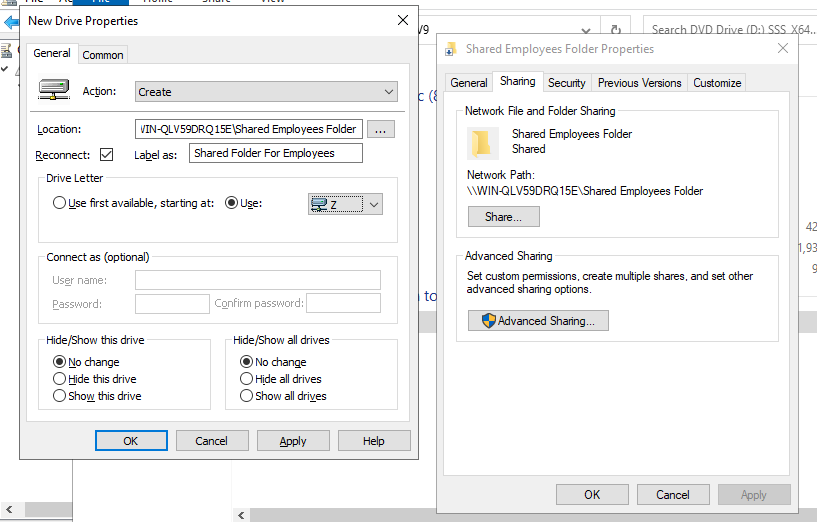
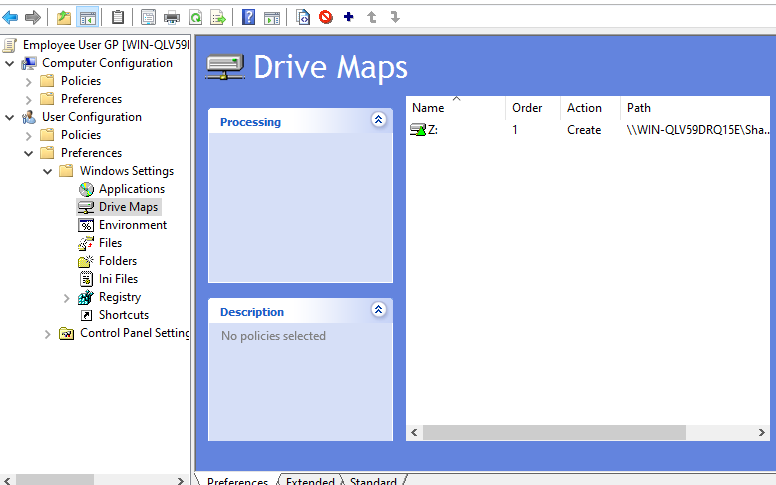
Result of creating a mapped drive
Testing
To test if the drive is up, you can log into your client VMs and see if it is in the File Explorer.
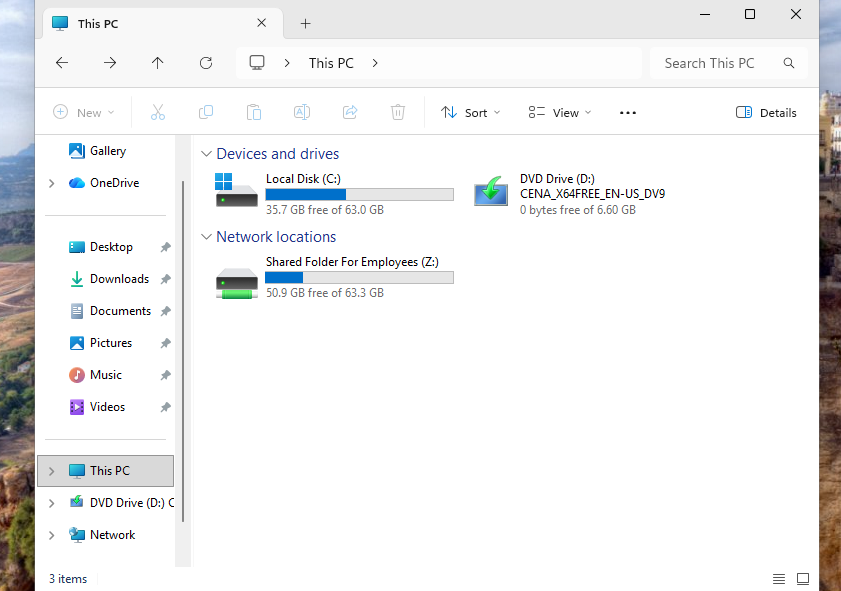
We can test the drive out by going back into the AD+DNS Server VM and making a test file, putting it into the folder, and we should see the test file on the client end as well.
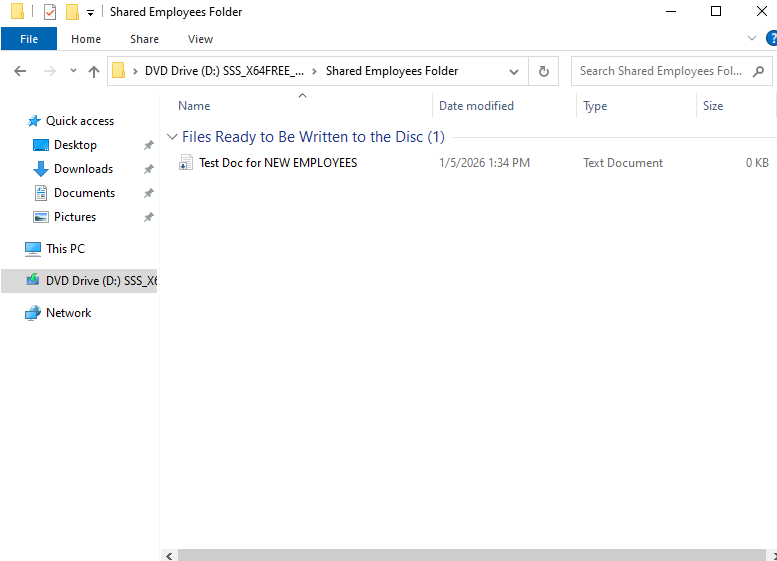
Creating a .txt file on the server VM
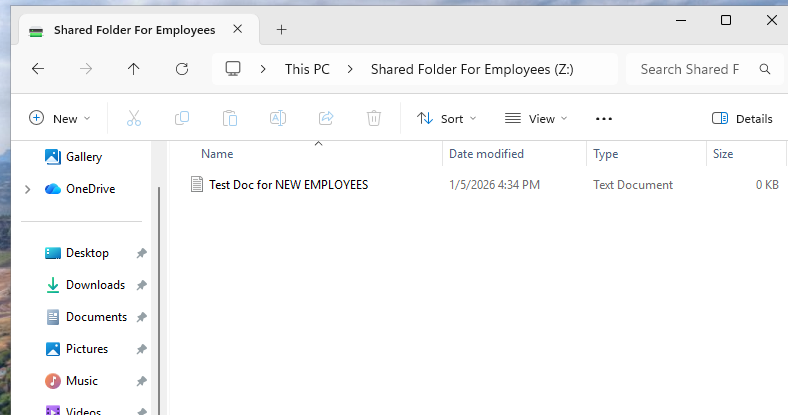
.txt file is seen on the client VM
That concludes mapping a drive on the AD environment. We learned about creating groups within ADUC, sharing resources over the network, the basics of NTFS (New Technology File System) permissions, and how to utilize GPOs to map drives for resource centralization.